API keys
3 min read · By Stefan Köhn
An API key is the access for a system you connect yourself: your shop, your old CRM, a script on your server. It travels as a header with every call, belongs to the whole account and may do whatever the account's permissions allow.
What it may do
Create, read, change. The key works on the whole account and not on a single entity; which endpoints are open depends on the booked modules alone. That is why it belongs in a system you run, and not in a form sitting with an outside provider.
Visible once, never again
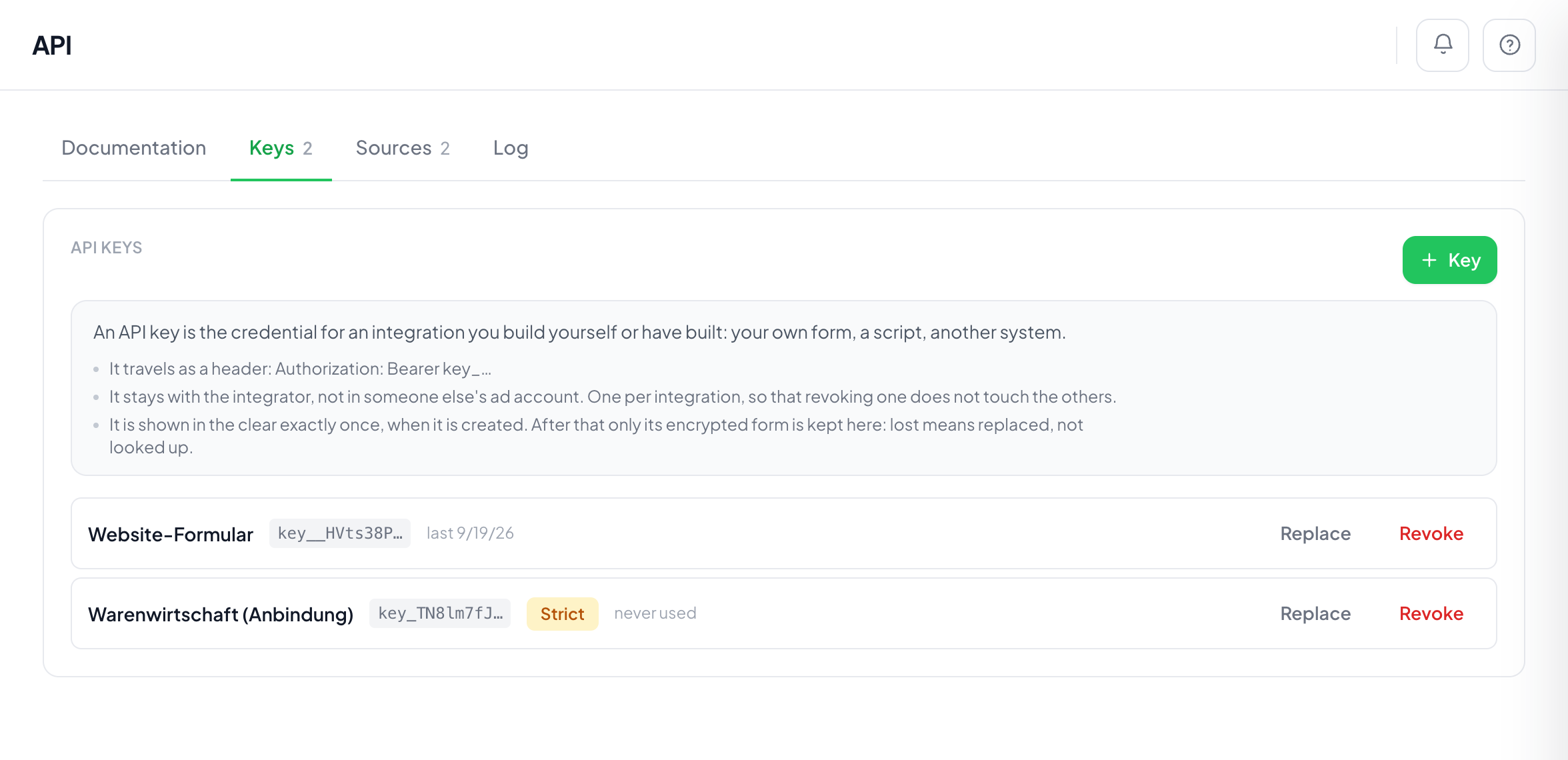
At creation the key stands in plain text in a dialogue, with a copy button. After that only a hash of it is in the database, and the list shows the first twelve characters so you can tell keys apart. This is not an oversight: a key the platform can display is a key the platform keeps in plain text.
Lost means replaced
Replacing issues a new key and lets the old one stand for another twenty-four hours. The connection keeps running while you enter the new one, and the list says until when. Revoking does the opposite and takes effect at once, with no grace period. Anyone who thinks a key has been stolen does not want leniency.
Strict mode
By default intake accepts fields the entity does not know, sets them aside and reports them as warnings. A key in strict mode refuses the same handover instead. That is the right setting while you are building an integration and want to see every typo, and the wrong one as soon as real records depend on it.
How much fits at once
Counting happens per account, not per key, otherwise the limit would be dodged by whoever issues themselves a second one. The default is a hundred and twenty calls a minute. For lead intake that is generous, because a form sends once and not a hundred times; anyone loading an existing stock has the limit raised.
Step by step
- Open Settings, API and the Keys tab.
- Press New key and give it a name that says where it will live.
- Decide about strict mode. On while building, off in production.
- Copy the key from the dialogue and enter it on the other side. You will not see it a second time.
- Send a call and check the log to see whether it arrived.
I did not copy the key. Now what?
Replace it. The new one appears in plain text once more, the old one holds for another twenty-four hours. Looking it up is not possible, not for us either.
Do I need one key per system?
You do not have to, but it is more convenient. Revoking then hits exactly one integration, and the log shows which of them sent something.
Does a key see every record?
Yes. Visibility scopes apply to people, not to accesses. Whoever issues a key grants access to the account.
What happens to existing records when I revoke?
Nothing. They are created and they stay. Revoking closes the door, it does not take back what came through it.
Who may create keys?
Whoever holds the permission for keys. Viewing, creating and revoking are three separate levels, and each of them stands on its own in role management.