Putting values into text
2 min read · By Stefan Köhn
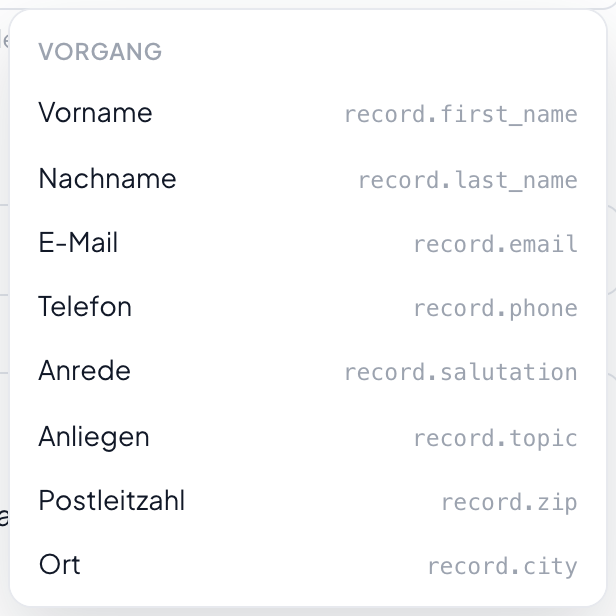
In every text field of an automation you can insert values from the record: the first name in a greeting, the date in a deadline, the result of an earlier step. The variable picker shows what is available.
The picker instead of learning by heart
The picker sits next to every text field. It shows six groups: record with its fields, origin, system, date, entity and the assignee. What is in there exists; what is missing does not.
One step reads the last
Every step gets a name of lower case letters, digits and underscores. Later steps read its output under that name, such as '{{ steps.name.status }}'. A dot or a space in the name makes the variable unfindable, and an unfindable variable becomes empty text.
An empty variable becomes nothing
When the value is missing, nothing stands in its place. No error, no placeholder line, just a gap. That is why a greeting without a first name sometimes starts with a comma. Where a value may be missing, put a filter in front or write text that holds up without it.
Not only in automations
The same placeholders fill a campaign email, a document template and the record name of an entity. It is one notation, not three.
Step by step
- In a text field, put the cursor where the value should go.
- Open the variable picker and choose the value.
- For the output of an earlier step, use that step's name.
- Check in a test run that what should be there is there.
How do I write a variable by hand?
In double curly braces, such as '{{ record.first_name }}'. The picker is still the safe way, because it knows how the fields are spelled.
Why does my variable stay empty?
Either the field on the record is empty or the name is wrong. A typo produces no error, only empty text. In the run the output shows what was actually inserted.
Can I rename a step?
Yes, but then the variables using it point at nothing. Look first for where its name appears.
Are there variables for the stage?
Yes, when the CRM is booked. Without that module there is no stage and the variable would stay empty, so it is not offered at all.
Can I calculate with variables?
Not in the text. That is what the step Calculate is for; you read its result as a variable afterwards.