Automations: what happens by itself
4 min read · By Stefan Köhn
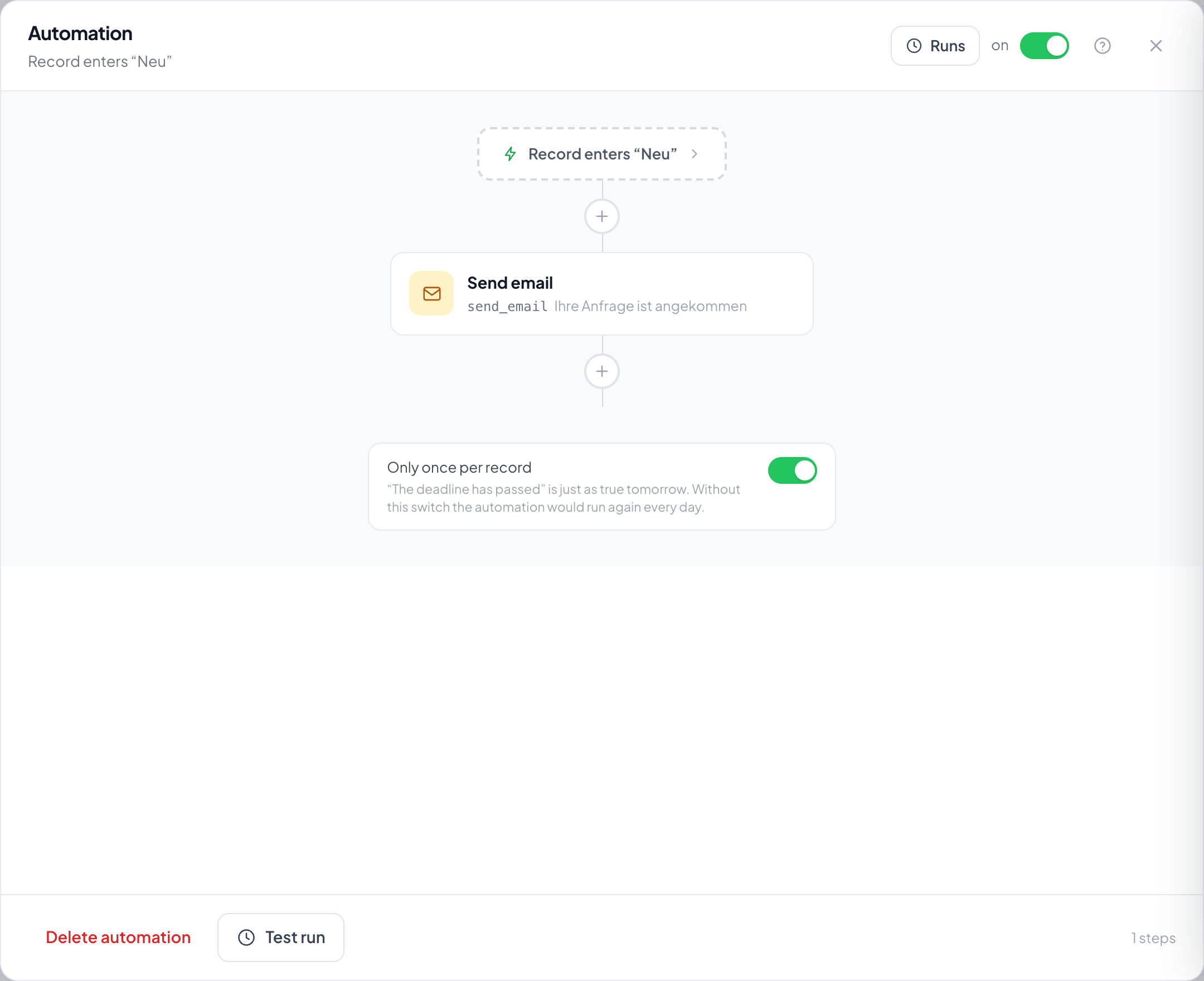
An automation is a trigger with a row of steps below it. It runs per record as soon as the trigger fires, and works through the steps in order.
Trigger on top, steps below
The trigger says when something happens: a new record, a stage change, a changed field, a date reached, a reply coming in. The steps say what happens then. Fourteen triggers and twenty steps are on offer, depending on which modules are booked.
Where it lives
Automation has no menu entry of its own, because an automation always belongs to something. The usual way in is the bolt at the head of a stage on the Board; the trigger is then already set to that stage. The menu of the record list reaches every automation of the entity.
It is named after its trigger
You do not give it a name. A freely chosen name goes stale the moment someone rebuilds the steps, and then a label sits there promising something other than its contents.
A running pass no longer changes
Editing an automation while passes are under way changes nothing about them. Every pass works through the version it started with; only the next one takes the new one. Otherwise the outcome would depend on when somebody hit save. The one exception is a paused step: runs already under way skip it as well.
Pausing a step
A paused step stays in the flow with its settings, but no run carries it out. Its switch sits top right once the step is open, in the same place as the switch for the whole automation. The pause also applies to runs already under way, and that is what it is for: you stop an email with the wrong text without deleting the step. When the step is switched back on, nothing skipped in the meantime is made up. What is missing is missing entirely. A paused wait does not wait, and runs currently in it continue within the next few minutes. A paused filter lets every record through, a paused branch leaves out its branches. If a later step reads the result of the paused one through a variable, it gets an empty value.
The test run sends nothing
In the drawer you can play the automation through on a real record. The run is marked as a test and nothing leaves the building. What comes of it is then under Runs.
Step by step
- On the board, open a stage's menu and choose Automation, or go through the menu of the record list.
- Set the trigger and save.
- Add steps with the plus and fill in the details of each.
- Start a test run and look at the result under Runs.
- Switch the automation on. That needs at least one step.
Which triggers are there?
Fourteen, depending on the modules booked: record created, field changed, date reached, started by hand, reply received, stage entered, stage left, idle in stage, no buyer, delivery returned, distribution completed, and signed, declined and expired.
What happens when a step fails?
The pass stops there and shows up under Stuck. Steps already done are not repeated when it carries on. See Runs.
How do I stop an automation?
Switching it off prevents new runs. Runs already under way carry on, even after a wait of several days. To stop those as well, pause the step in question, for example the email. Runs then skip it.
How do I wait for something?
With the step Wait. It can do both: let a fixed time pass, and, given a condition, carry on the moment it holds. Also set a maximum, so no pass stands still forever.
How do I get at values from the record?
Through the variable picker in every text field, see Variables.
Can two automations trigger each other?
Yes, if one sets a field the other listens to. A filter at the start or the Once per record switch stops the loop.
Why is a step missing from the catalogue?
Either it belongs to a module that is not booked, or it lacks a prerequisite. Send email for instance wants an outgoing mail account and shows as not yet set up until there is one.
What does Once per record mean?
The trigger fires only once for the same record. Needed for anything that stays true daily: idle for five days is true again tomorrow.