Why a run is stuck
2 min read · By Stefan Köhn
Every pass of an automation is recorded: step by step, with state, duration, input and output. This is where you look when something did not happen.
The list and the filter that matters
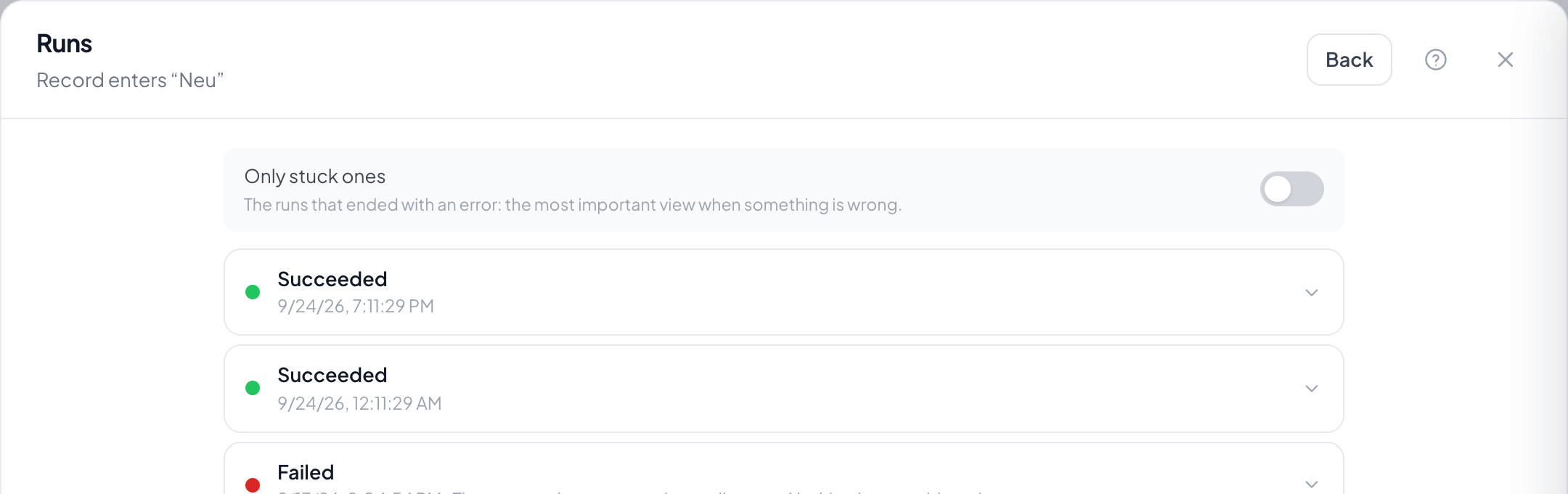
In the automation drawer, Runs holds what has run. The Stuck only switch is the view that counts: it shows the passes that ended in an error. If you came here because someone complained, start there.
Eight states
Running, Waiting, Successful, Failed, Halted, Cancelled, Pending, Skipped. Waiting is not a fault: a Wait step holds the pass on purpose. Skipped means a filter or a branch left this step out.
Input and output per step
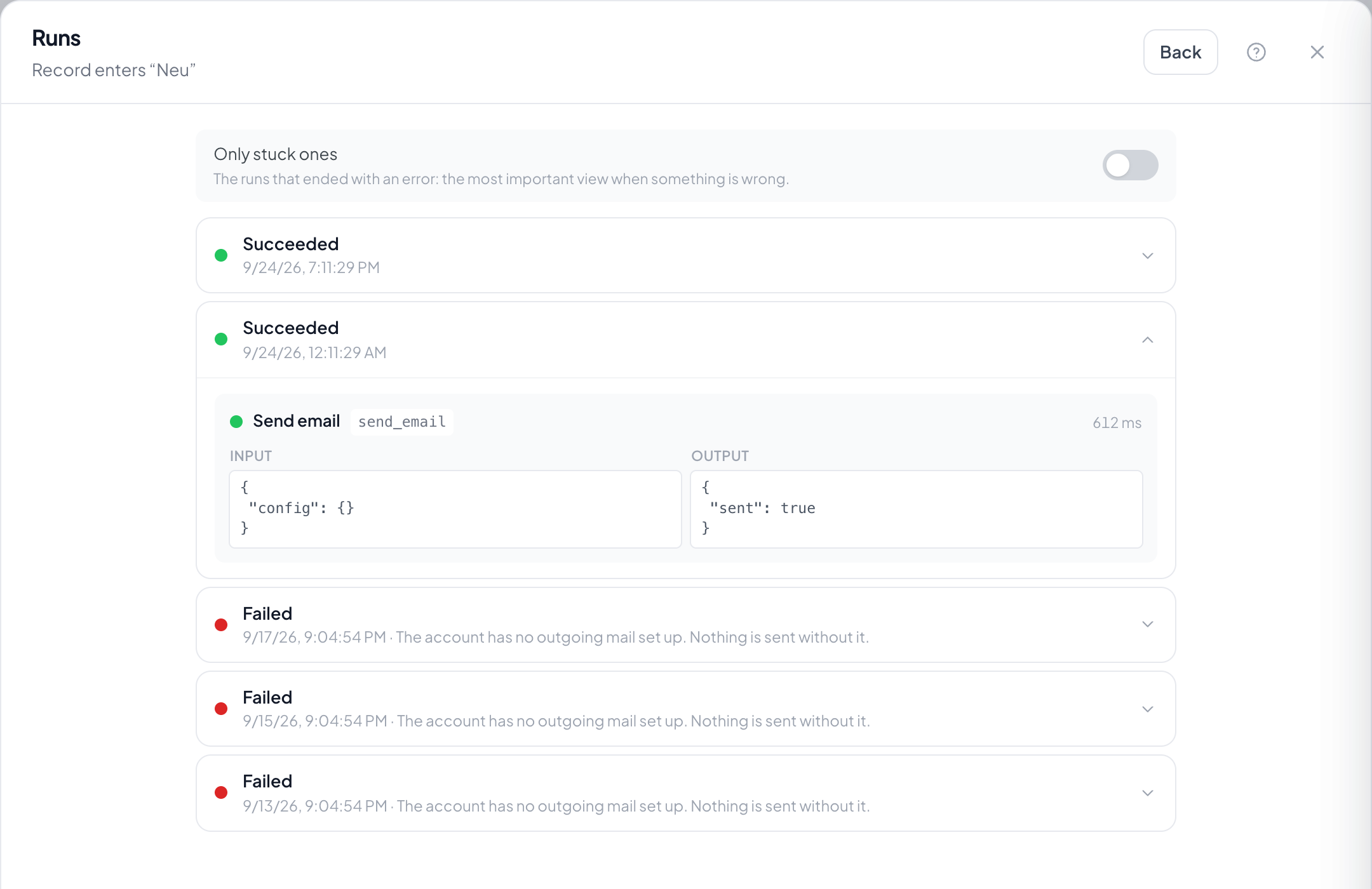
For every step you see what it started with and what it gave back. The input is frozen, so it shows the values of the time and not of today. That is exactly what you need: a record worked on since would otherwise no longer explain why the pass did what it did.
What to do with an error
The output of the failed step names the reason. Common ones are a missing prerequisite, an address that does not answer, or a variable that stayed empty. Steps already done are not repeated when a pass carries on, so it does not send the same mail twice.
Step by step
- Open the automation and switch to Runs.
- Turn on Stuck only when chasing an error.
- Expand the pass and find the step that is not successful.
- Read the input and output of that step.
A pass says Waiting. Is that a fault?
No. A Wait step holds it on purpose until the time is up or the condition holds. Without a maximum that can take a while; set one.
Why is a step skipped?
Because a filter did not hold or a branch took another path. The filter names which condition failed.
I changed the automation and the pass is still stuck.
A running pass works through the version it started with. The change applies to new passes. See Automations.
How long do runs stay?
As long as you set under Retention for the automation logs.
Am I notified when something gets stuck?
If you switched the occasion on, yes. It is called Automation stuck, see Notifications.