Outgoing mail: what your post goes out through
2 min read · By Stefan Köhn
For messages to be sent in your name, you store the credentials of your mail provider. Without them the application has no sender the recipient would recognise.
Three levels, in this order
First a person's own account: then the mail really does come from them. Otherwise the account's own, with its name in front and its address for replies. And last the system sender, which invitations and password links run through anyway, because they have to work before an account even exists.
Why not the system sender
Because the address then is not yours. A sender the recipient does not know lands in spam or gets deleted. And an SPF and DMARC check cannot be dodged by writing someone else's name into the from field; that is forgery, and mail servers treat it as such.
What to enter
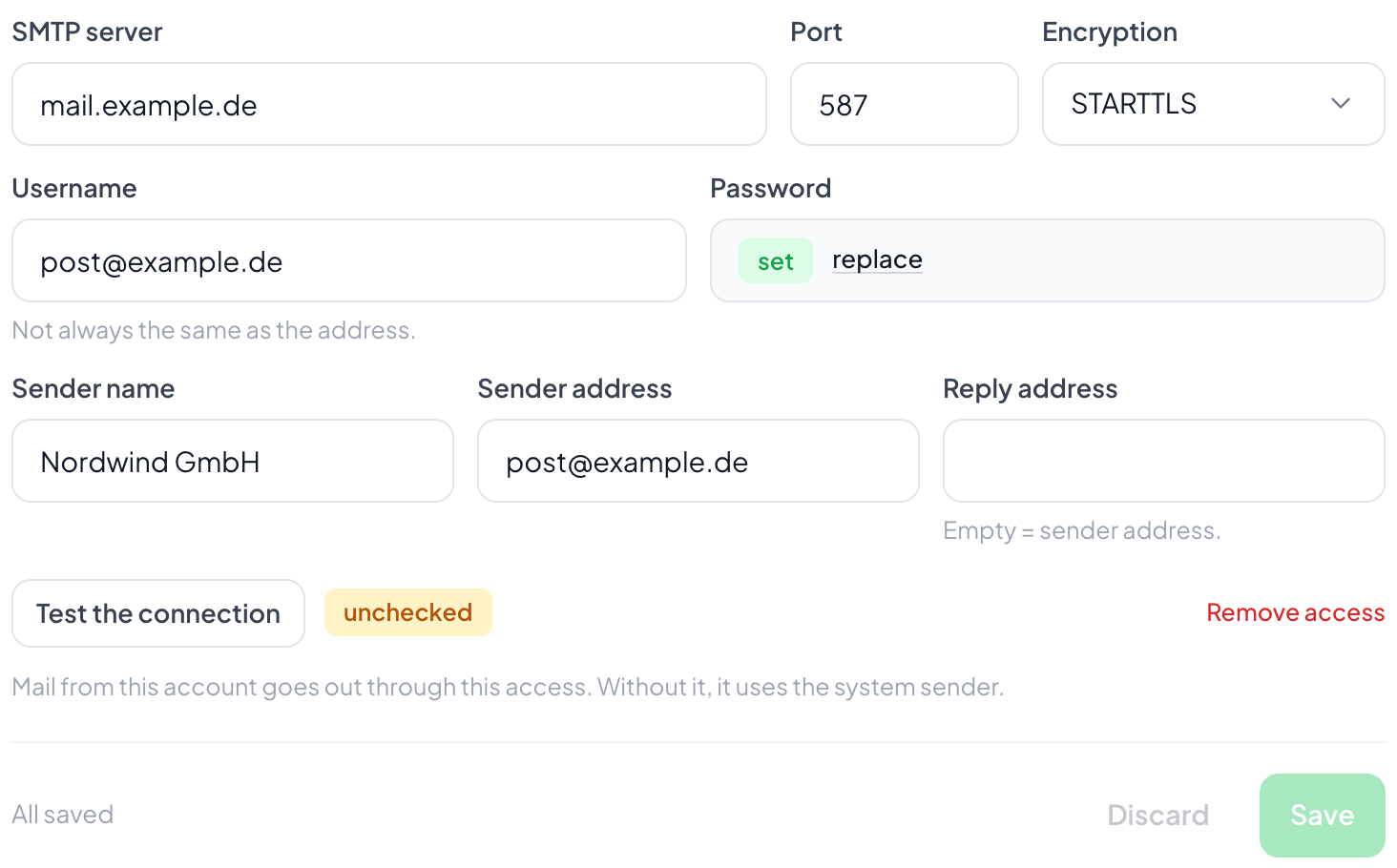
Server, port and encryption come from your provider. The user name is not everywhere the same as the address. Then sender name and sender address, and optionally a different reply address. An empty reply field means replies go to the sender address.
Save first, then check
Check connection signs in with what is saved and says whether it worked. The most common fault is not a wrong password but a space inside it that came along from the clipboard. The server answers that with authentication failed, and you go looking in the wrong place.
Step by step
- Open Settings, Account, the Outgoing mail tab.
- Enter server, port, encryption, user name and password.
- Set the sender name and sender address.
- Save, then choose Check connection.
What does not work without outgoing mail?
The step Send email cannot be picked in the automation catalogue while no account has been stored, and neither can Request signature. Bulk email needs a sender too. Everything else carries on.
Why give each person their own account?
So a mail really comes from them and the reply lands with them. It refines a working account setup, it does not replace it: automations also run at night and for records with no assignee.
Is my password stored in the clear?
No, it is stored encrypted and only read back to send. Unlike a sign-in password it has to stay readable, because the mail server expects it. It never comes back to the interface.
What is the reply address?
The address a reply goes to when it should differ from the sender address. Anyone writing from their own mailbox who wants to see replies on the record also sets up the Incoming mail.
Can I remove the account again?
Yes. The next level of the chain then applies, meaning the system sender. Automation steps that require an account setup are no longer selectable.