The overview
4 min read · By Stefan Köhn
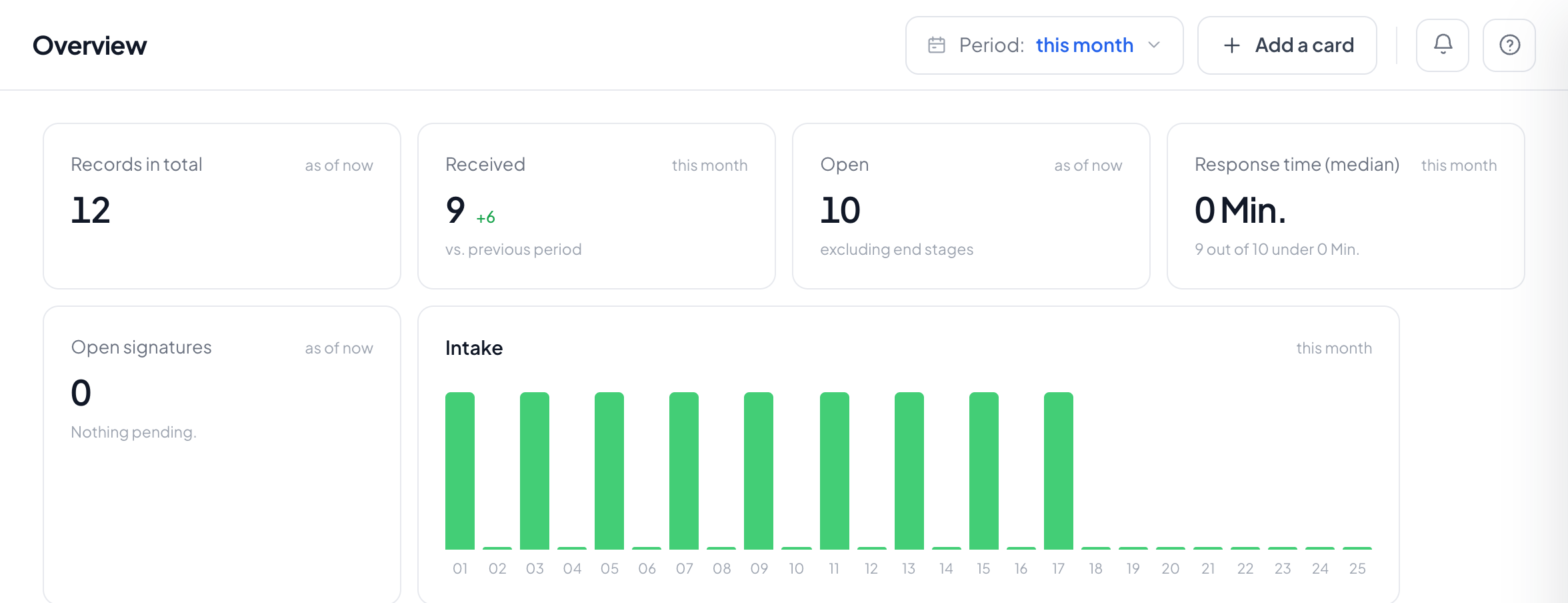
The start page is made of cards you assemble yourself. Each answers a question you have in the morning: how much is sitting there, how fast do we react, what came in last.
You assemble, you do not arrange
At the top right is the catalog with everything this account can offer, organised like the page. What you tick appears; what you untick disappears. Where a tile sits is fixed: in its section, in its place. A drag-and-drop grid is a lot of work for a freedom hardly anyone uses, and it turns every new tile into a question of where it belongs.
Each section answers one question
The overview is divided into sections. My work: what is on your plate today, tasks and appointments. Records: what comes in and where it stands, with the figures for it. Then one section per module, such as distribution with its history, revenue and rate. Last, operations: whether automations are running and what changed recently. A section without tiles does not appear at all. On wide screens My work sits on the right in a column of its own, everything else to its left. What is meant for you stays in view while you read the figures.
The period picker does not apply to every card
A period sits at the top, and every card states for itself whether it follows it. A measurement such as response time computes over the chosen period and carries it as a note on its label. A stock counts what is lying there now: an open task is open, and a time filter would hide the old ones precisely. Lists such as the latest records show the most recent regardless of age, because on quiet days they would otherwise be empty, and that reads like a fault.
A row opens its record
The lists hold records: the latest intake, your open tasks, the latest changes. Clicking a row lays the record over the overview, and Escape brings you back. Where there is nothing left to open, a deleted record for instance, the row stays and does nothing.
The arrangement is yours
It hangs on your access, not on the account. Somebody sitting next to you may have a completely different start page. The numbers on it additionally follow your visibility scope: two people with the same card see different numbers if they are allowed to see different records.
An empty card says why it is empty
Either no entity has been released to you yet, or it has no pipeline, or nothing is open at the moment. In every case the reason stands in the card. A 0 would be the wrong answer, because it claims a measurement that never took place.
New core tiles arrive on their own
Once a module is booked, its core tiles appear on your start page right away, even if you have customised it, in their own section. This happens once: if you remove such a tile, it stays out.
Rows fill themselves
Depending on the booked modules a section may hold two figures or five. From three on they share their own rows evenly; one or two sit next to the tiles beside them. The wide tiles grow until their row is full. Every section is laid out on its own, so no gap is left.
What a module brings along
Every module brings its core tiles: the CRM the stock per stage, automation the failed runs, signatures the open requests, forms the submissions, booking your next appointments. Distribution shows its history as stacked bars, plus revenue and placement rate. Anyone who may not see deliveries is not offered these three at all. Further tiles of a module, such as deliveries per buyer, are in the catalog. Campaigns and locations bring no tile of their own today.
Step by step
- Open the overview from the first entry in the side menu.
- Press Add a card at the top right.
- Tick what you actually look at in the morning and take out the rest.
- Set the period at the top. Cards that follow it carry it as a note on their label.
Does everyone see the same?
No. The arrangement is yours, and the numbers in it follow your visibility scope.
Can I reorder cards?
No. You can add and remove them, their place is fixed: in the right section, in the same spot as for everyone else.
Why is there suddenly a new tile on my start page?
Because a module was added or gained a new core tile. It appears once. Remove it with the cross or in the catalog, and it will not come back.
Why is there no rating on time-in-stage?
Because the system measures and does not judge. Whether a number is good is for you to decide.
Why is a card empty?
Either there is no data for it, or a precondition is missing, a pipeline for instance. The reason stands in the card instead of a 0.
Why does the whole overview show nothing?
Then you lack the permission for records in this account. Nearly every card counts records, and without that permission a page full of placeholders would be left standing.