Status Groups & Pipelines

Last updated: 2026-02-15
Sidebar > Entities > [Object] > Edit > Status Groups

Where to find it

Sidebar > Entities > [Object] > Edit > Status Groups

Status Groups & Pipelines

Status groups define your lead pipeline. Each status maps to a Kanban column in the CRM, so you can drag leads from stage to stage. This guide covers how to create, edit, reorder statuses, and set a default status for new leads.

What Are Status Groups?

A status group is a collection of statuses that represent stages in your pipeline. For example:

  • New – Just arrived, not yet reviewed
  • Qualified – Verified and ready to work
  • Contacted – Initial outreach done
  • Won – Deal closed successfully
  • Lost – Deal did not close

Each status becomes a column on your Kanban board. Leads are placed in one column at a time, and you move them by dragging cards between columns.

Kanban board with status columns

Why Status Groups Matter

  • CRM Kanban – Statuses = columns. No statuses means no Kanban structure.
  • Filtering – Filter leads by status in the CRM, exports, and distribution rules.
  • Automation – Automations can trigger when a lead moves to a specific status (e.g., "Send email when status = Qualified").
  • Reporting – Track conversion rates, time in each stage, and pipeline health.

Accessing Status Groups

  1. Go to Entities in the sidebar.
  2. Select the Entity you want to configure.
  3. Open Edit.
  4. Navigate to the Status Groups tab or section.

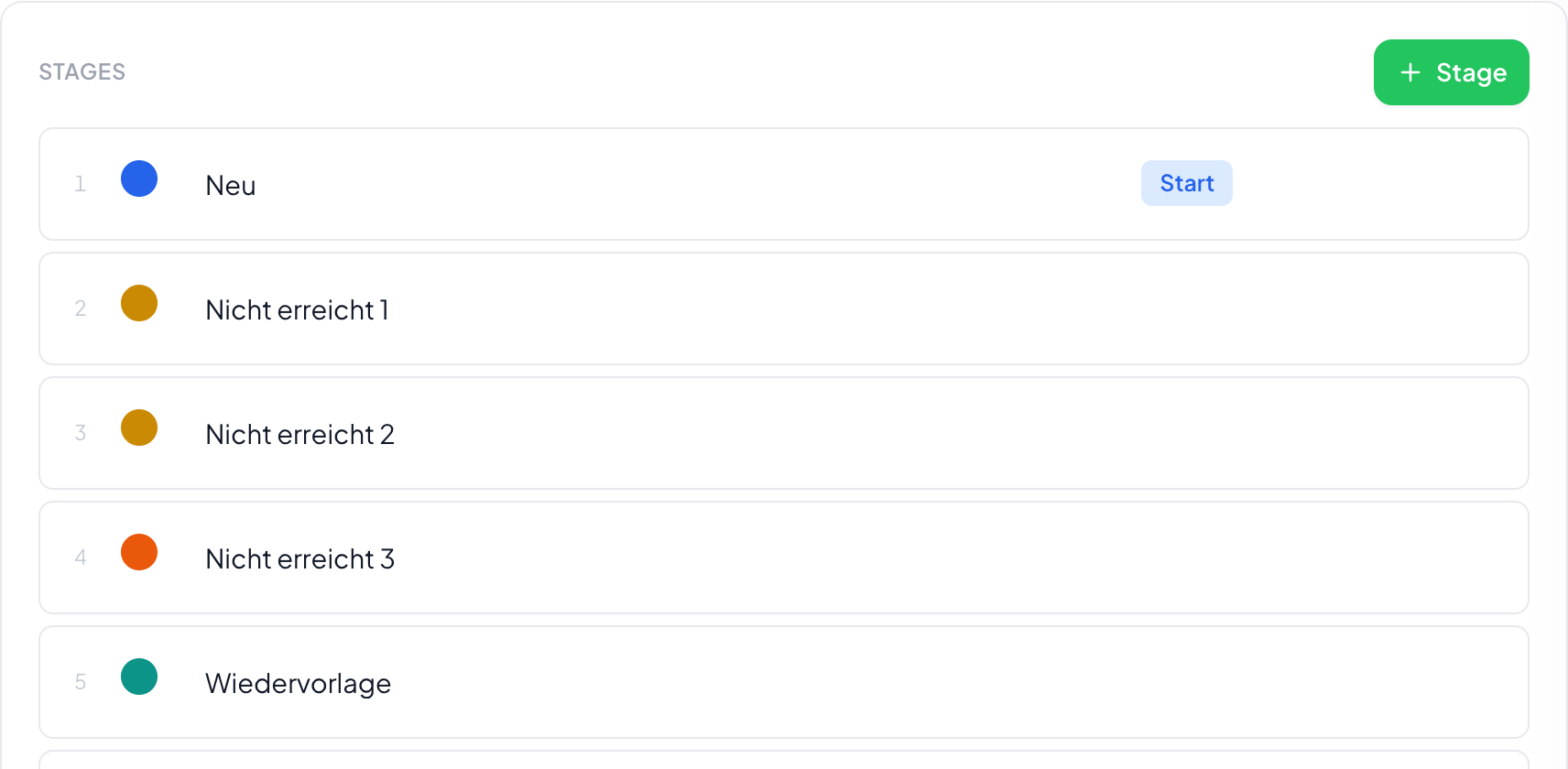
Status Groups configuration

Creating a Status Group

If your Entity supports multiple status groups (e.g., for different pipelines), you'll create a group first, then add statuses. If you have a single default group, you may go straight to adding statuses.

  1. Click Add Status Group or Create Group (if applicable).
  2. Name the group (e.g., "Sales Pipeline").
  3. Add statuses to the group (see below).

Adding Statuses

  1. In the Status Groups section, click Add Status or + New Status.
  2. Enter the Status name (e.g., "New", "Qualified", "Won").
  3. Optionally set a Color or Label for visual distinction on the Kanban.
  4. For the default status (used for new leads), ensure it's marked—see "Default Status" below.
  5. Click Save or Add.

Repeat for each stage in your pipeline.

Editing a Status

  1. Find the status in the list and click Edit (pencil icon).
  2. Update the name, color, or other properties.
  3. Click Save.

Note: Changing a status name updates it everywhere (Kanban, filters, automations). The internal key may stay the same to avoid breaking references.

Reordering Statuses

The order of statuses determines the left-to-right order of Kanban columns.

  1. Use drag-and-drop to reorder statuses.
  2. Or use Move up / Move down buttons.
  3. Save if required.

Typical order: NewIn ProgressWon / Lost (with Won and Lost often at the end).

Reorder statuses

Default Status

The default status is assigned to new leads when no status is explicitly set. Examples:

  • A form submission creates a lead → it gets the default status (e.g., "New").
  • An API create request without a status → default is used.
  • An imported lead without a status → default is used.

How to set:

  1. In the Status Groups section, find the status you want as default.
  2. Click Set as default or toggle Default.
  3. Only one status per Entity (or per status group) can be default.

Status Colors

Many setups support colors for statuses to make the Kanban easier to scan:

  • New – Blue or gray
  • In Progress – Yellow or amber
  • Won – Green
  • Lost – Red or gray

Colors are optional but improve visual clarity.

Common Pipeline Patterns

Sales Pipeline

New → Qualified → Contacted → Proposal → Won | Lost

Lead Review Pipeline

Inbound → Review → Approved → Rejected

Distribution Pipeline

Received → Matched → Distributed → Paid

Simple Two-Stage

New → Processed

Choose a structure that matches how your team works. You can always add or remove statuses later.

Multiple Status Groups (Advanced)

Some accounts support multiple status groups per Entity. Use cases:

  • Sales vs Support pipelines
  • Pre-sale vs Post-sale automations
  • Different products with different stages

If available, create a group per pipeline and assign leads to the appropriate group. The CRM may show a group selector or separate Kanban views.

Status Groups and the CRM

  • Each status = one Kanban column.
  • Leads appear in the column matching their current status.
  • Dragging a card updates the lead's status.
  • Empty columns can be hidden or shown depending on settings.

Status Groups and Automation

Automations can:

  • Trigger when a lead moves to a specific status
  • Condition on current status (e.g., "If status = Won, send notification")
  • Action to change status (e.g., "Set status to Lost after 30 days no contact")

Ensure your status names are clear and consistent for easy rule building.

Best Practices

  • Keep it simple – Start with 4–6 statuses; add more only if needed.
  • Use clear names – "Contacted" is better than "Stage 2".
  • Order logically – Left to right should match your real process.
  • Set a sensible default – Usually "New" or "Inbound" for new leads.
  • Avoid duplicates – Don't create "New" and "New Lead" for the same concept.

Next Steps

Was this helpful?
Thanks for your feedback!

Try Leadflip for free

Start capturing and managing leads in minutes.

Sign up free