Fields and their types
3 min read · By Stefan Köhn
A field is one detail on a record: phone, order value, preferred date. The type decides what may be written into it, how the value is shown and what you can filter by later.
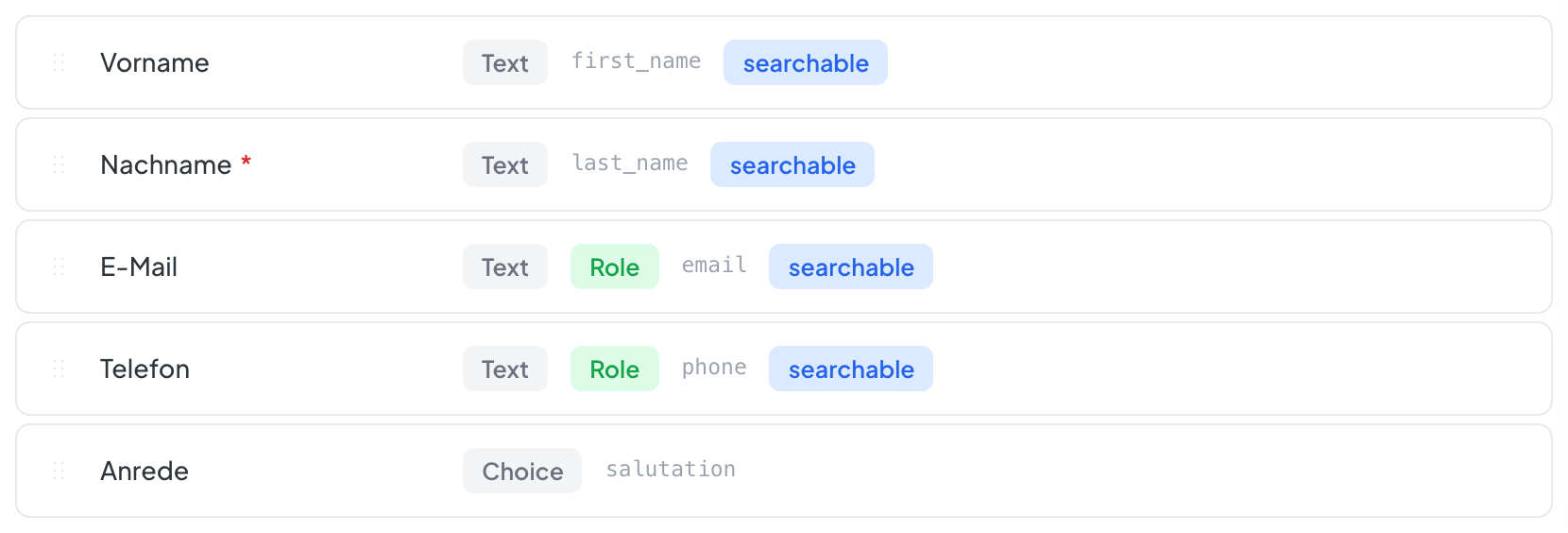
Twelve types, and when each one fits
Text for short entries, Long text for whole paragraphs. Number for anything you calculate with. Yes/No for a decision. Date and Date and time differ in whether the clock matters. Select offers fixed options. File takes an attachment. Address carries street, town and country as separately searchable parts. Reference points at another record, Person at a member of your team, Area at a piece of land with its size in square metres.
The format sharpens the type
A text can be an email address, a phone number or a web address; a number can be a currency amount or a percentage; a file can be an image or a document. The format checks what is entered and decides how the value appears. A currency amount shows its currency, and an email address is checked for its shape as it is saved.
Five switches per field
Required demands a value before saving. Searchable puts the field into the full text search everyone uses. Sensitive redacts the value in logs, automation runs and exports while it stays readable on the record. Visible to partners lets the value go out with a delivery, and In the preview request lets it appear in the anonymous enquiry beforehand. The last two belong to Distribution and only show when that module is booked.
An option is hidden, not deleted
On a select field you create the options yourself. What no longer applies gets switched off rather than removed: the value disappears from the form, existing records keep it, and filters still find it. Deleting would make the history unreadable, and retroactively at that.
Step by step
- Open Settings, Entities, the Fields tab.
- Choose New field and enter a label. The technical key is derived from it and can be adjusted.
- Pick the type, then the format for text, number and file.
- Set the switches that apply to this field.
- For a select field, create the options.
Can I change the type later?
As long as no record holds a value in it, yes. After that the type is locked, because the existing values would have to fit the new type. The way round it is a second field and a move of the values.
What is the difference between Date and Date and time?
Date carries only the day, Date and time also the clock and therefore the time zone. A deadline needs only the date. The question of when someone was called needs the time.
What is the Sensitive switch for?
It redacts the value everywhere it does not belong: in the change log, in automation runs and in exports. On the record itself it stays readable. Meant for details only the person working the case needs.
Why does search not find a field?
Only fields marked Searchable go into the full text search. That is deliberate: every further field makes search slower and the hits vaguer. You can still filter by any field, see Filters.
What happens to a deleted field?
It is soft deleted first and can be restored. If values still sit in it or an automation uses it, the application shows you where before it deletes.
How many fields can one entity take?
There is no fixed limit, but a practical one: past roughly thirty fields the form gets hard to read. Field groups help, see Entities.