Inviting Team Members
Where to find it
Sidebar > Account Settings > Members
Inviting Team Members
A Leadflip account is multi-user from the start. You can invite as many teammates as your plan allows, give each one a role, and (optionally) scope what they can see to specific Entities.
Where to find it
Sidebar > Account Settings > Members.
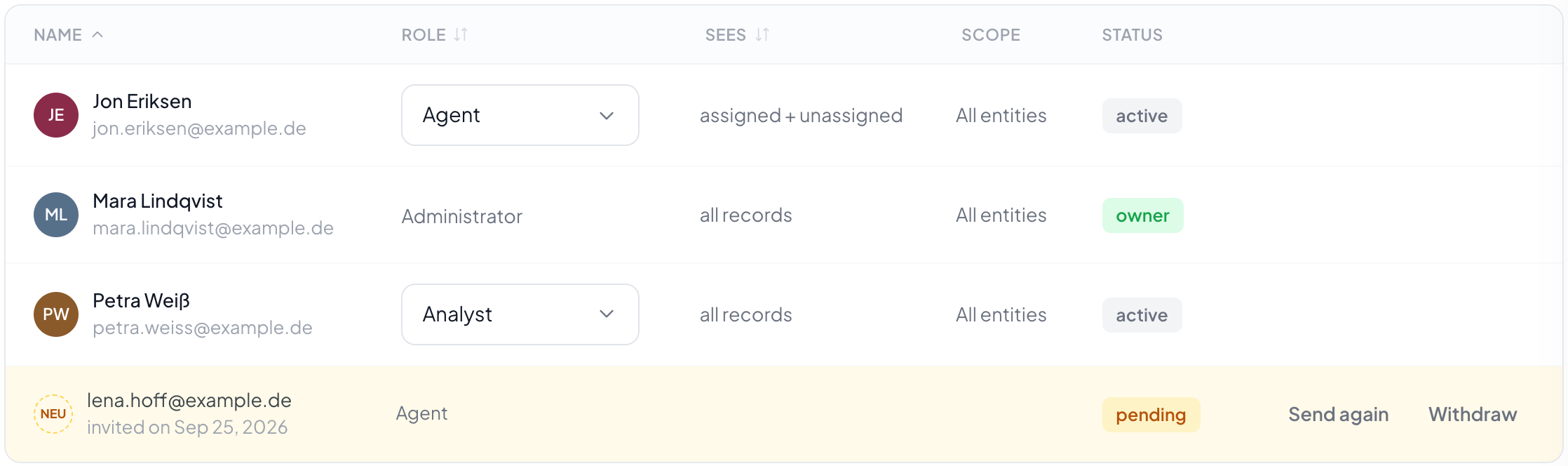
The Members tab lists every active member of the account, their role, and pending invitations awaiting acceptance.

Inviting a new member
- Click + Add Member in the top-right of the Members tab.
- Enter the invitee's email address.
- Pick a role (see Roles below).
- Optionally restrict their access to specific Entities. Leave it on All entities if they should see everything.
- Send the invitation.
The invitee receives an email with a one-time signup link. Until they accept, they appear under Pending Invitations on the Members page. You can resend or revoke a pending invite from that row.
Prerequisite: Invitations are emailed using your account-level SMTP server. If SMTP isn't configured yet, invitations won't go out. See Email Setup.
Roles
| Role | What they can do |
|---|---|
| Admin | Full access. Can manage every module, invite and remove members, edit billing, change subscription, view all entities. |
| Member | Day-to-day work. Can manage leads, build forms, configure distribution, and run campaigns within the entities they have access to. Cannot manage billing or invite new users. |
Role names and exact permissions can evolve. The Members table always reflects the current set; check there if you're unsure what a role allows.
Entity-scoped access
By default, a new member gets access to all entities in the account. If you want to restrict them (for example, a junior who should only see the Real Estate entity, not the Mortgage entity), tick only the entities they need when sending the invitation. You can change this later from the member's row in the Members table.
A member with no entity access cannot see any leads or forms; they can only see the dashboard shell. Generally not what you want, but useful for placeholder accounts.
Pending invitations
A pending invitation:
- Has been emailed but not yet accepted.
- Has its own row under Pending Invitations with the recipient's email and the role assigned.
- Can be resent (sends the email again) or revoked (cancels the invite, so the link in the original email stops working).
Invitations expire after a reasonable period (the exact duration depends on your security settings). Expired invites need to be resent.
Removing a member
When a teammate leaves or changes role:
- Open the Members tab.
- Find their row.
- Use the menu on the row to remove them, change their role, or change their entity access.
Removing a member:
- Revokes their login immediately. They cannot access the account from that moment.
- Preserves the activity they created. Leads they assigned, campaigns they sent, automations they configured: none of that disappears. The actions stay attributed to them historically.
- Is reversible only by inviting them again with a fresh invitation.
If a member owned active leads, those leads stay assigned to them in the audit log, but you'll want to reassign them to someone active. See Assigning Leads for how to bulk-reassign.
What a new member sees on first login
- They click the invitation link in their email.
- They land on the signup page with their email pre-filled. They set a password and (optionally) their display name.
- After confirming, they're logged in and land on the Dashboard with the entities they were granted access to.
- They see the same sidebar and modules you do, minus anything their role or entity access blocks.
Plan limits
The number of team members allowed on your account depends on your plan. If you're at the limit and try to invite another, the Add Member button is disabled with a tooltip pointing at Plan & Billing. Upgrade there to free up seats. See Plans & Pricing and Managing Your Subscription.
Common patterns
- Solo owner + admin assistant. Two admins, both with all-entity access. Simplest.
- Sales team with separate entities. One Admin for setup, several Members each restricted to one entity (their vertical).
- External partner reviewer. A Member with read-only-equivalent role and entity access limited to one entity. (Note: if you need full external visibility for a buyer, use the Partner Portal, not a team member seat.)
- Outgoing contractor. Remove them on their last day. Their attribution stays in the activity log.
What invitations are NOT for
- Lead distribution buyers. Don't invite buyers as team members. They get their own login through the Partner Portal, which has separate auth and only shows them their own data.
- API consumers. If you need an external system to push leads in, generate an API key under Account Settings > API Access instead. See API Authentication.
Related articles
- Creating Your Account. The original account-owner signup.
- Account Settings overview
- Email Setup. SMTP prerequisite for invitations.
- Assigning Leads. Distribute work across the team.
- Plans & Pricing. Team seat limits per plan.