Set assignee
1 min read · By Stefan Köhn
Decides who looks after the record. Two independent settings: which pool the person comes from, and how the choice is made among several: so work can be handed out in turn, by load, or fixed.
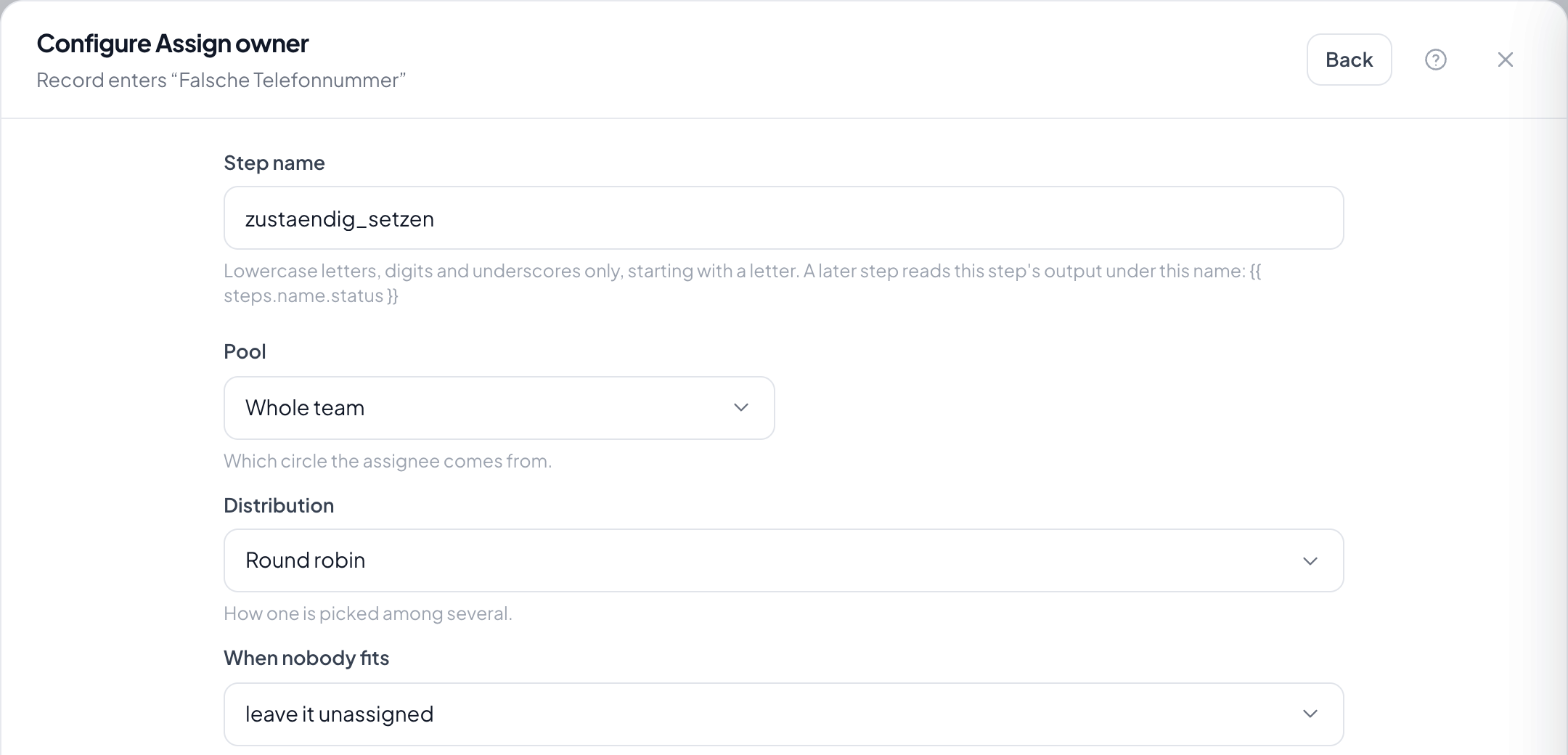
Step by step
- In the flow, choose the plus and take Set assignee.
- Under Pool define the circle: the whole team, a role, a list of people, or one particular person.
- With several candidates, choose the strategy under Distribution: round robin, least loaded, or random.
- Save and check across several records that the distribution comes out as intended.
How do I hand out work in turn within a role?
Set the pool to Role, choose the role, set distribution to Round robin. Each new record then goes to the next person holding that role.
What does least loaded mean?
It counts the open records assigned to each person. On a tie the order within the team decides.
Does the step overwrite an existing assignee?
Yes. If you do not want that, put a filter on assignee is empty before it.
What if the pool is empty?
Nobody is assigned and the run carries on. That happens when a role has lost its members, for instance.
Does an assignment by the automation count as a change?
Yes, it appears in the record's history and in the change log, with the automation as its author.