Filtering and searching
2 min read · By Stefan Köhn
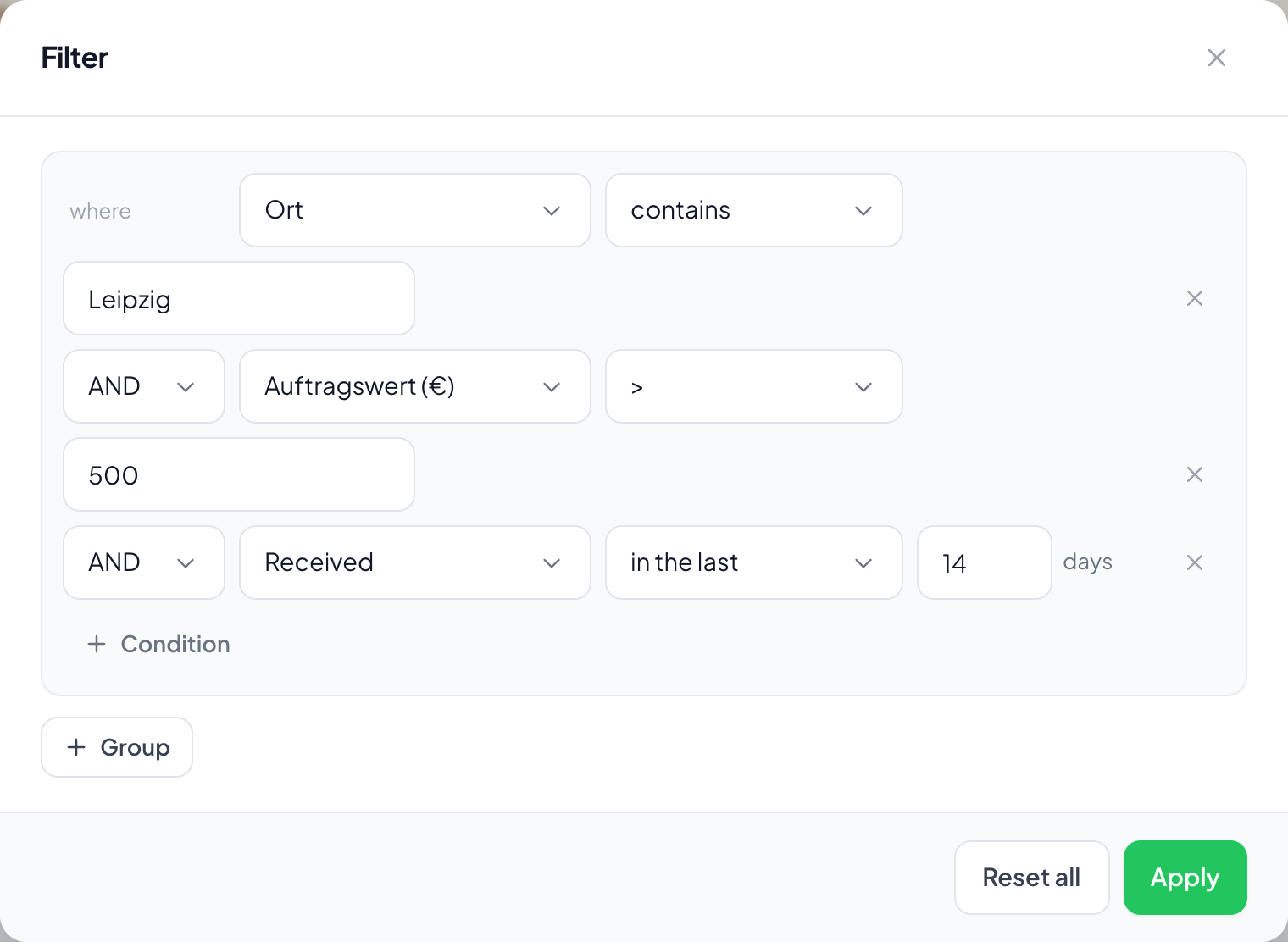
Search finds a record you already have in mind. A filter describes a set: everyone in Leipzig who has been sitting untouched for two weeks and is assigned to nobody.
Two tools for two questions
The search at the top covers the fields marked as searchable and is meant for the single case. A filter builds a condition over any field and any detail of the record, including ones that are not in the search at all.
Conditions and groups
A condition is a field, a comparison and a value. Several of them join with AND or OR. For anything that cannot be said that way there are groups: inside a group one join applies, between the groups the other.
Not only your fields
Next to your Field types sit the record's own details: stage, assignee, arrival, last change, source, first contact and the campaign details. On an address you can test the parts separately, the postcode alone for instance.
Time without a fixed date
Date comparisons offer more than on, before and after: in the last n days, in the next n days, is in the past, is today. A condition with a fixed date would be wrong tomorrow; a relative one stays right.
Step by step
- Choose Filter on the list or the board.
- Pick a field, pick a comparison, enter a value.
- Add further conditions and join them with AND or OR.
- Apply. The number of hits appears next to it.
Why does search not find a field?
Because it is not marked searchable. You can still filter by it. The switch sits on the field, see Field types.
How do I find records with no value in a field?
With the comparison is empty. Its opposite is is not empty.
How do I find my own records?
Condition Assignee, comparison is me. That holds up better than typing your own name.
What is the difference between is and contains?
is wants the whole value, contains a piece of it. For Leipzig, is matches only Leipzig, contains also matches Leipzig-Gruenau.
Can I reuse a filter for a campaign?
A campaign's audience is built with the same toolkit, see Campaigns. You do have to enter the conditions again by hand.