A record in detail
2 min read · By Stefan Köhn
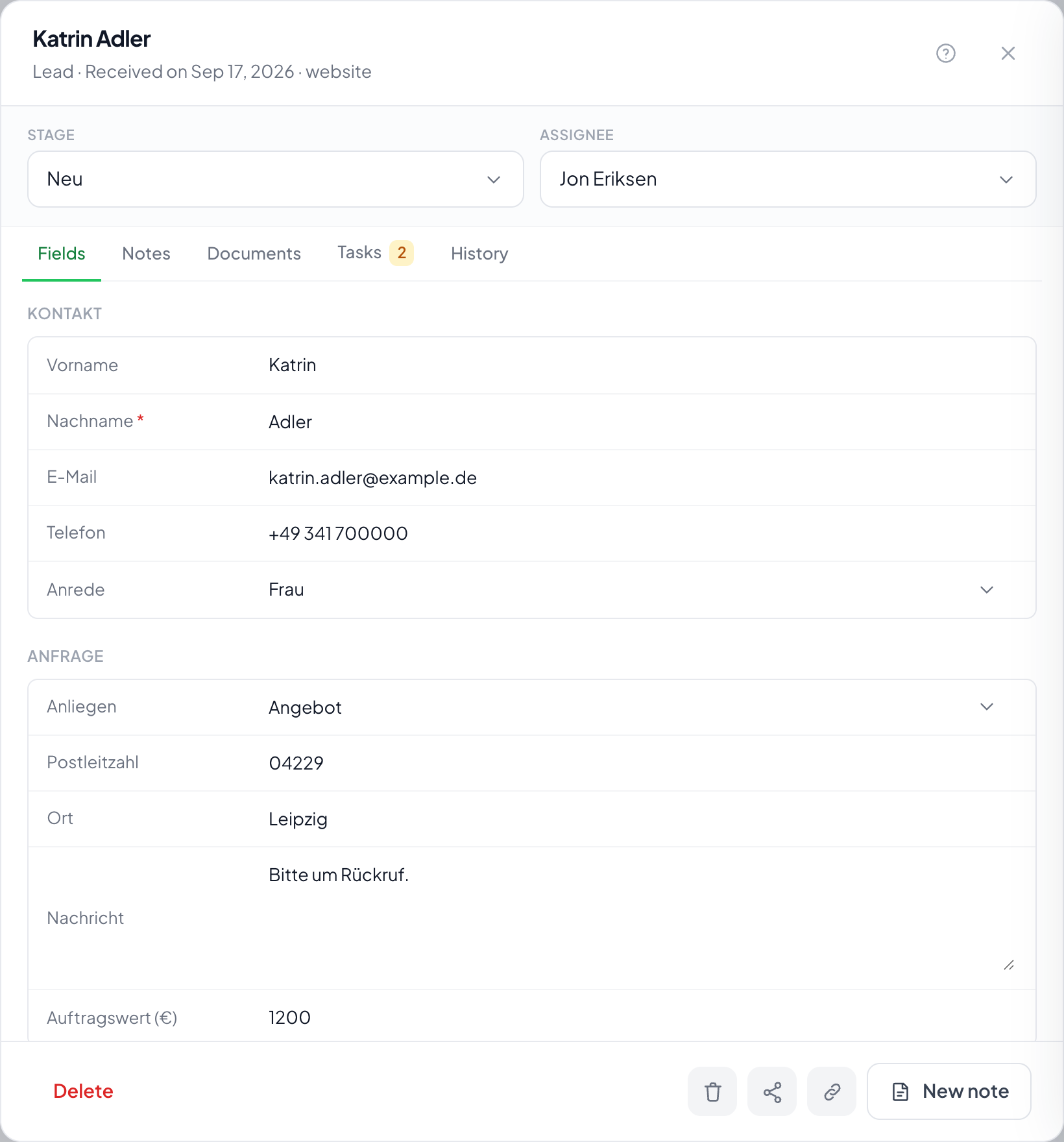
The record opens as a panel from the right. Stage and assignee sit at the top, and below them five tabs: Fields, History, Notes, Documents, Tasks.
The head decides, the rest records
Stage and assignee sit above the tabs on purpose: they are the two things people change most while working. Changing the stage here fires the same automations as dragging a card on the Board.
The five tabs
Fields shows the details, arranged in groups. History records what happened. Notes takes what fits into no field. Documents collects the files. Tasks stands for what someone still has to do.
It opens where you already are
A record lays itself over the page you are working on. From the board and the list, from the inbox, from a tile on the home page and from a notification at the bell. The inbox stays where it was, with the same message open. Escape or the cross closes it, and you are back where you were.
Watchers and links
Share brings in colleagues who should follow the record without being responsible for it. The assignee does not change. The link next to it copies an address that opens the record directly, handy for a message to a colleague.
Origin
Origin shows where a record came from: the source, the first contact and, where present, campaign details such as source, medium and search term. Nobody types this in, it appears at intake.
Step by step
- Click a card on the board, a row in the list, or Open record on a message in the inbox.
- Change the details on the Fields tab.
- Switch stage or assignee at the top.
- Add what belongs on the other tabs.
How do I assign a record to someone?
Top right under Assignee. Whoever is assigned gets a notification, provided they have it switched on.
What is a watcher?
Someone allowed to see and follow the record without being responsible for it. They are notified about notes and stage changes.
Why can I not change a field?
Then your role lacks the right to. What it does carry is under Roles and rights.
What does the note about the record being anonymised mean?
The retention period has run out. Field values are gone; the id, timestamps and source stay so that counts still add up. See Retention.
What is a legal hold?
A block against deletion. While it is set, the retention run leaves the record alone, for instance during an ongoing disclosure request.