Tasks on a record
2 min read · By Stefan Köhn
A task is something someone still has to do, with a due date and an assignee. It stays open until somebody ticks it off.
Why a task and not a notification
A notification is read and therefore done. A task stays put until it is ticked off, and goes overdue if nobody touches it. Whoever expects an action creates a task; otherwise it drifts away in a mailbox.
Tasks from an automation
An automation step can create a task, for instance to follow up after three days without a reply. It then carries the note “created automatically”, so it is clear why it is there. See Create task.
Due and overdue
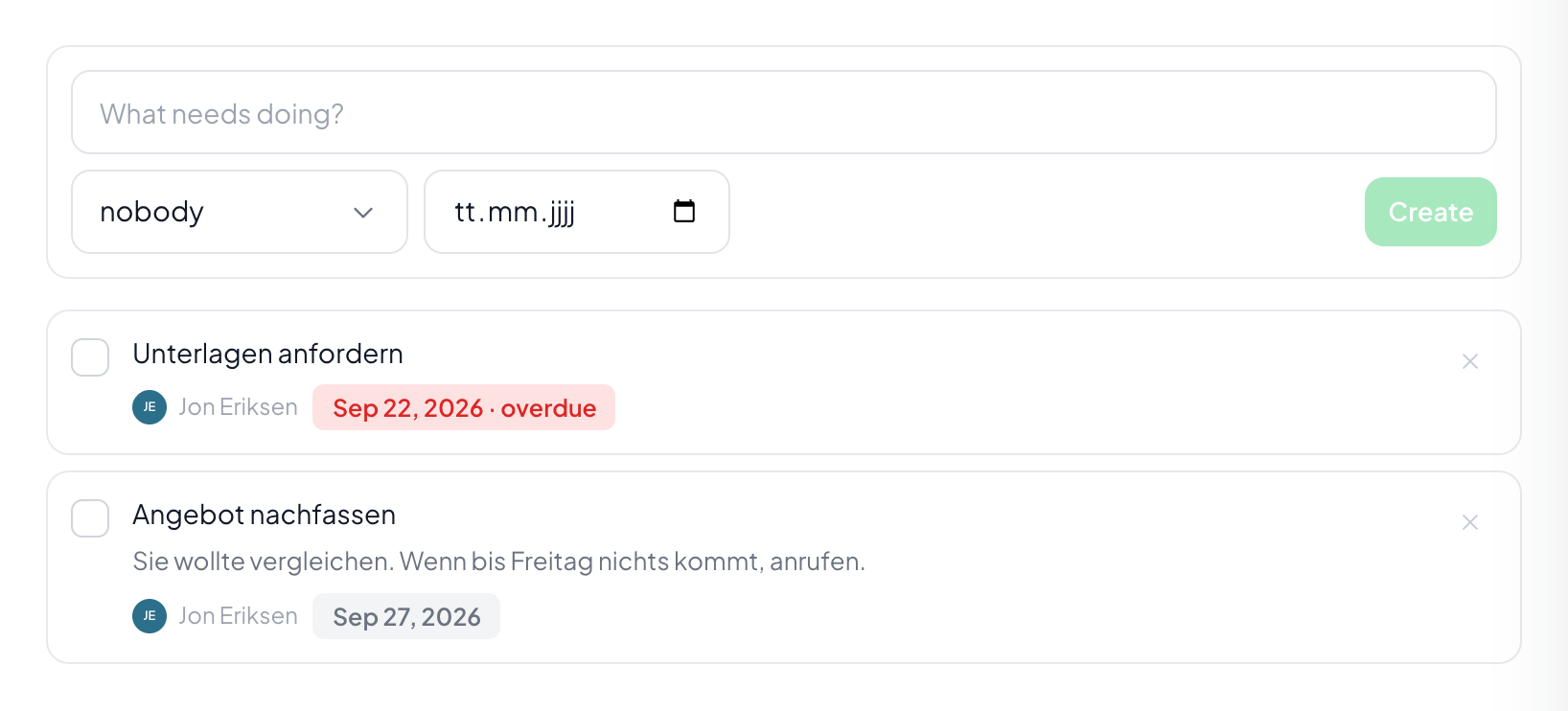
A task with a due date shows when it falls due today and stands out once the date has passed. Without a due date it stays open with no further signal. For "sometime" that is right, for "before the appointment" it is not.
Step by step
- Open the record, Tasks tab.
- Describe what needs doing.
- Set assignee and due date as far as they are known.
- Create it. Tick the box when it is done.
Who gets notified about a task?
Whoever is assigned, provided they have notifications switched on for it. Without an assignee the task is visible to everyone and reserved for nobody.
Can I see who created a task?
Yes. Each task shows who created it, or “created automatically” when an automation made it. The same name appears in the notification under the bell and in the email to the assignee, including the reminder about an overdue task.
Can I reopen a finished task?
Yes, by clicking the box again.
Is there a list of all tasks?
Tasks sit on their record, because without it they have no context. What is open and overdue is shown on the overview.
Does a task trigger anything?
No. It reminds, it does not act. Anyone wanting something to happen by itself takes an automation with a time trigger, see Automations.