Create task
1 min read · By Stefan Köhn
Puts something on somebody's list for good, with a due date. Unlike a notification a task stays open until somebody ticks it off: the way for anything that actually has to be done.
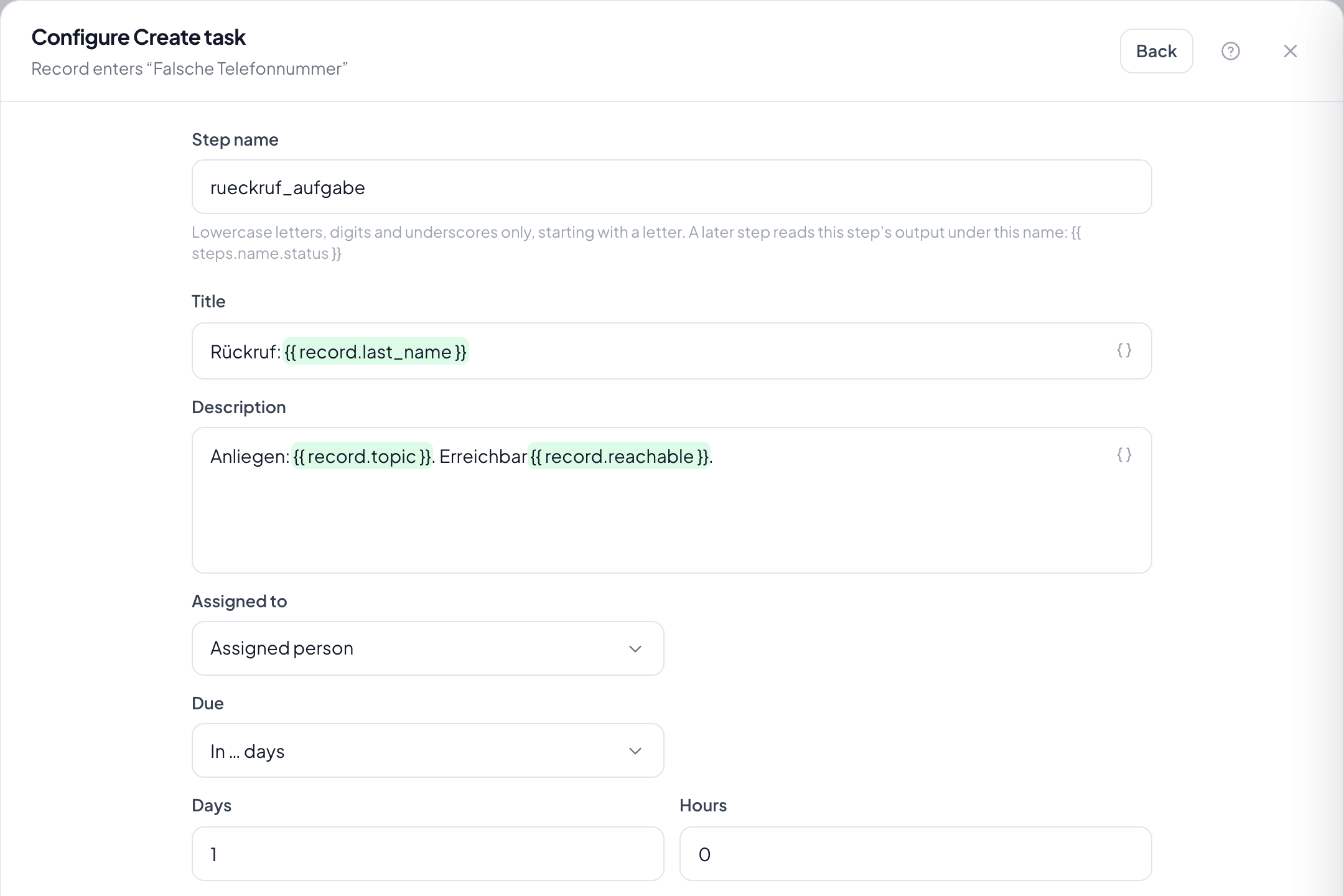
Step by step
- In the flow, choose the plus and take Create task.
- Enter a title and, if useful, a description.
- Under Assigned to choose the person: usually the person assigned to the record.
- Set the due date: either In … days or relative to a date field on the record; a negative number means before.
- Save. The task appears on the record under Tasks and in the My tasks tile on the overview.
How do I set the due date to two days before a deadline?
Due date relative to a date field, choose the deadline field and enter minus two days. After in three days it is the second most common setting.
What if the date field is empty?
The task is created without a due date. It is not lost, but it does not show up among the due ones either: a filter before it prevents that.
Are duplicate tasks created when the automation runs several times?
Yes. To avoid it, switch on Once per record at the trigger.
Does the system remind about a due task?
Yes, there is a daily reminder to the assignee. Whether it arrives as a notification or an email is set in the recipient's profile.
Who besides the assignee sees the task?
Everybody who may see the record: it sits on it. The task list shows each person their own.