Send email
2 min read · By Stefan Köhn
Sends a message to the contact, to the team or to both. To, cc and bcc are text fields with variables: so the same mail can go to the address on the record and in blind copy to your own inbox.
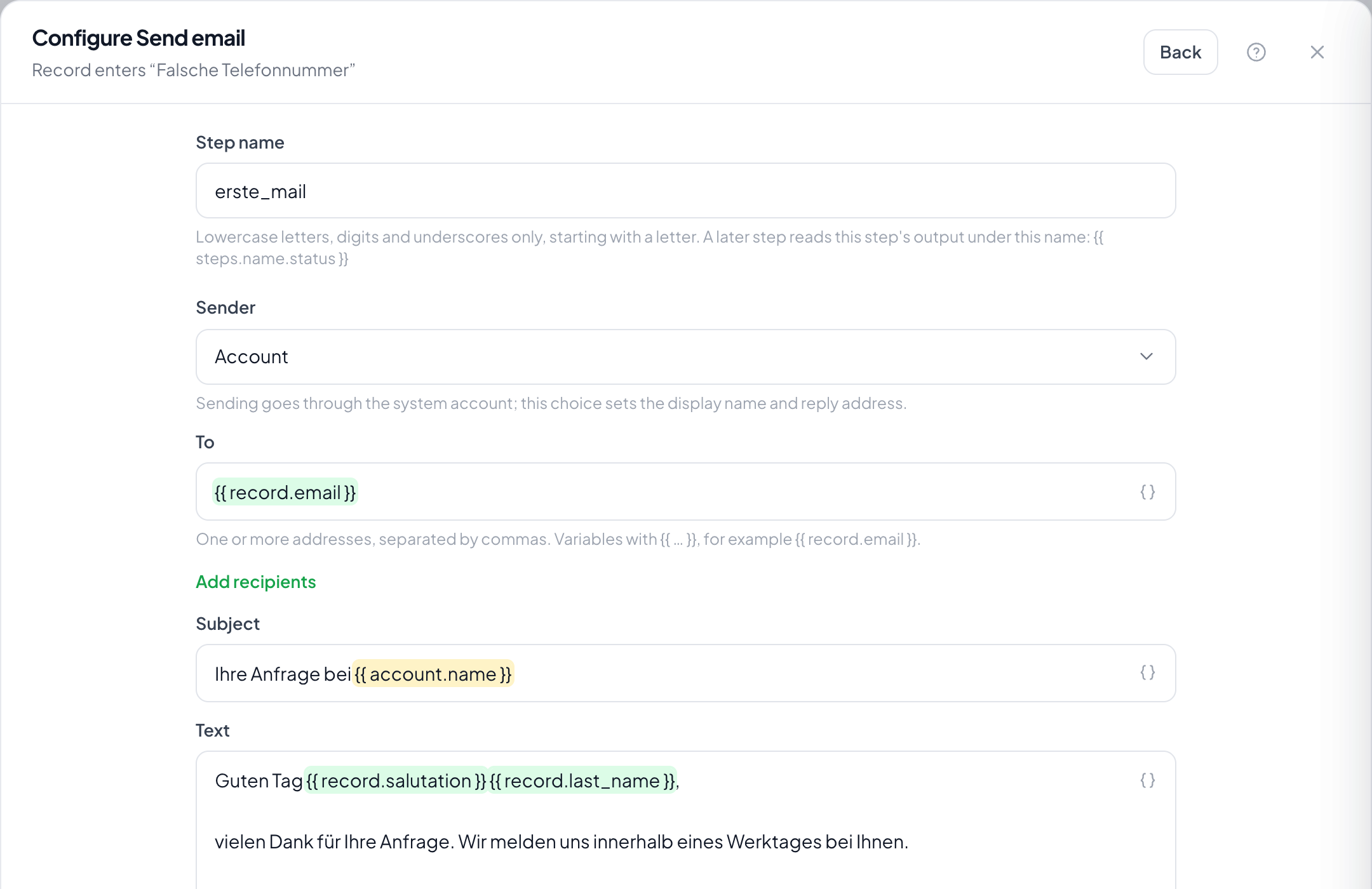
Step by step
- Make sure the account has mail access: otherwise the step appears in the catalogue with Set up and cannot be used.
- In the flow, choose the plus and take Send email.
- Under To enter the recipient, usually as a variable from the contact field. Separate several addresses with commas; Add recipients brings in cc and bcc.
- Write the subject and the text. Paragraphs are separated by a blank line, variables insert the record's values.
- Under Sender choose whether the account or the assigned person appears in front.
- Use Test send for a trial to your own address, and only then save.
Why is the step locked?
Because the account has no mail access yet. Without a sender there would be nothing to send. The hint in the catalogue leads straight to the settings under Account, tab Email.
What does the test send do exactly?
It sends the mail to your own address, rendered with the most recently created record. That shows the variables filled with real values instead of placeholders.
Who appears as the sender?
The account's access, or the assigned person's own access if they have set one up. Choosing the assigned person also sets the display name and the reply address.
What happens if the address on the record is missing?
The step fails and the run halts. To avoid it, put a filter on is not empty before it.
Can I attach a file?
Yes, either a file you upload once or a file field of the record: then whatever sits there goes along.
Can I see whether the mail arrived?
The run shows whether it went out. Whether it was read is beyond a single mail: that is what campaigns with their open tracking are for.