What applies to the whole distribution
4 min read · By Stefan Köhn
These settings apply to every partner of this record type: what is never distributed at all, how selection works, what a record costs, when a duplicate is a duplicate, whether returns are allowed, and the switch that halts delivery.
How selection works
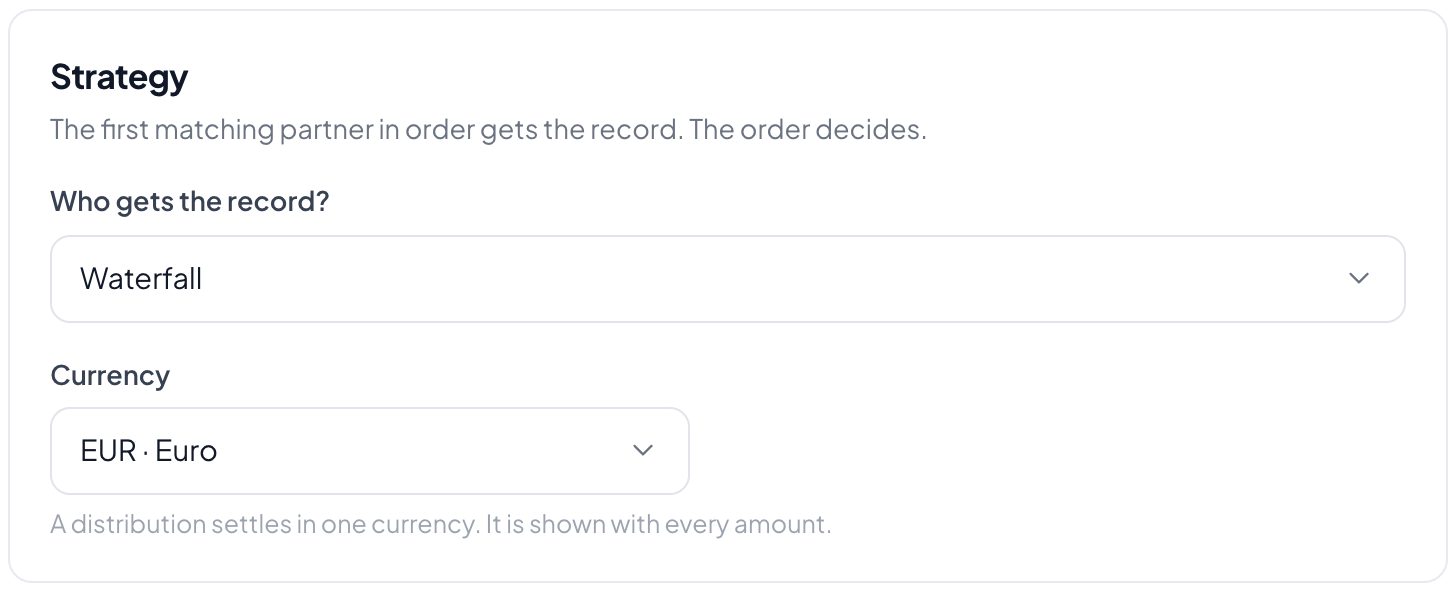
The strategy decides what happens when several rules fit: first match only, all matches, or round robin. With first match the order counts; with all matches the same record gets several buyers.
What is never distributed at all
The prefilter is one condition for the whole distribution. A record that does not meet it goes to no partner, and the rules below are not even checked. It exists for records nobody should buy: test entries and incomplete enquiries. “Phone is not empty” and “Email does not contain test” are the two conditions most people start with. As long as none is set, the prefilter does not apply and every record enters the selection as before.
When two records are the same
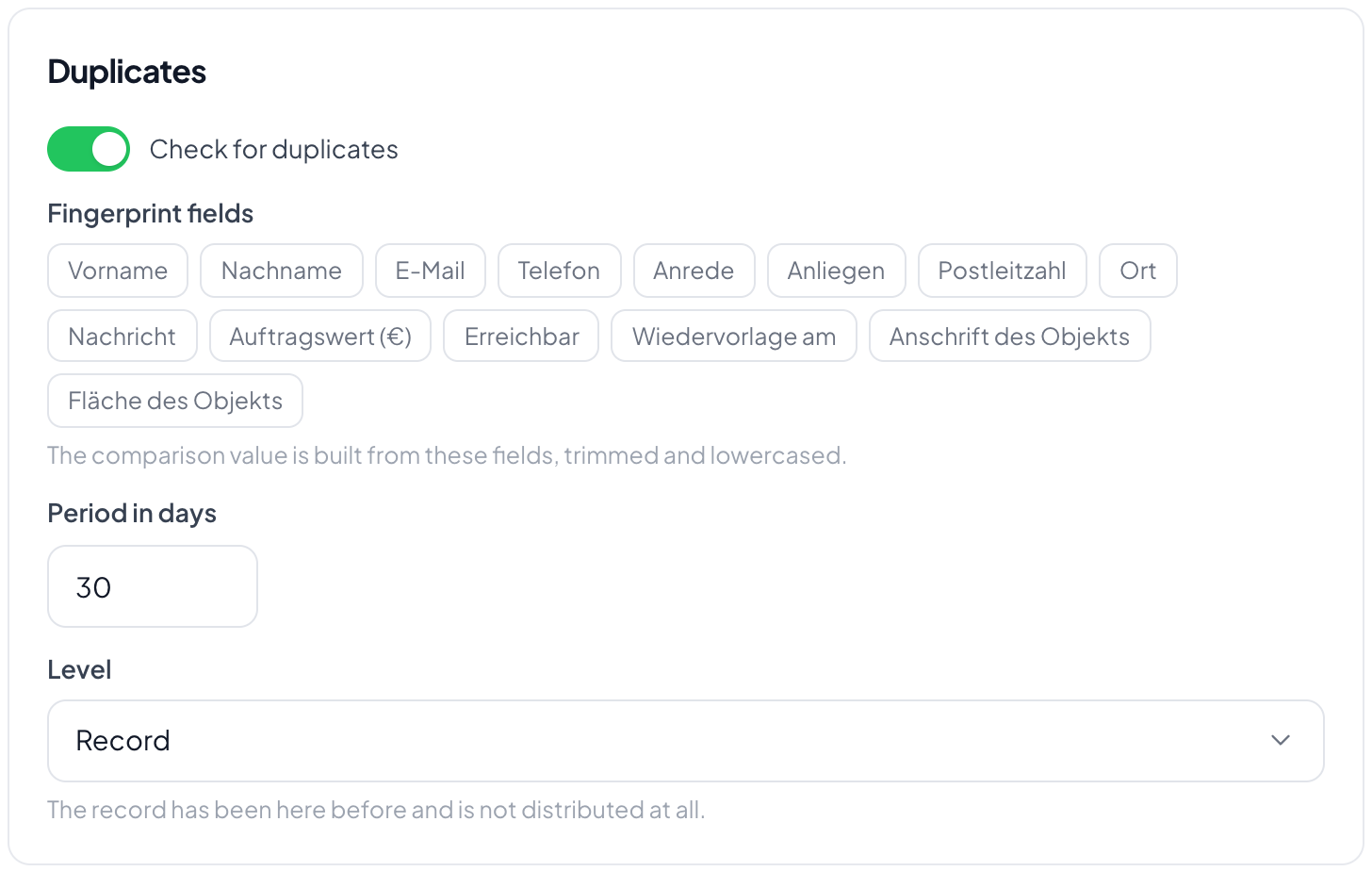
From the fields you name a fingerprint is built: trimmed, lower cased, phone numbers reduced to digits. If the same fingerprint comes back within the days you set, it counts as a duplicate. This is a different check from the intake duplicate check: that one decides whether a record appears, this one whether it goes out again.
Returns and the deadline
You decide whether records may be returned and for how long. Within the deadline a return takes effect at once, whichever way it comes. Afterwards only a goodwill request is left.
The switch that stops everything
Distribution halted stops delivery without touching any rule. Meant for the moment when something is wrong and nobody has time to find out what. Records still come in, they just do not go out.
Step by step
- Open Routing and go to its settings.
- Choose the strategy: waterfall, to everyone matching, or balancing.
- Set the prefilter if there are records nobody should receive.
- Set the price that applies as long as no rule carries one of its own.
- Decide about duplicates: what marks them and over which period.
- Set the return deadline and the reasons a record may be returned for.
What separates the three strategies?
"Waterfall": the first matching rule wins and the record goes to exactly one partner. "To everyone": every matching partner receives it, up to the maximum number of buyers. "Balanced": among the matching partners, the one who has received the least so far gets it.
How does the prefilter differ from a rule’s conditions?
The prefilter decides whether a record is distributed at all. A rule’s conditions decide which partner gets it. Once the prefilter stops a record, not a single rule is checked, and under Deliveries the record counts as “without a buyer”.
How is a duplicate detected?
A fingerprint is built from the fields you choose: usually email and phone number. If the same fingerprint appears again within the configured number of days, the record counts as a duplicate. At level "record" it is not distributed at all; at level "partner" only the same partner is skipped, while another one still receives it.
What is the time window for?
Some partners only want records during business hours. Outside the window a record is either skipped, then the next partner gets it, or held: it waits until the window opens again. Calendar blocks take out single days, such as 24 and 31 December.
What does "distribution paused" mean?
New records keep coming in and are still assigned, but nothing goes out: deliveries pile up. The switch is for the phone call that says "stop right now". When you switch it back, the backlog goes out at once.
When may a partner return a record?
If returns are allowed, within the deadline counted from delivery. The deadline here applies to everyone; a participation may differ, and a single return reason ("duplicate") may carry its own. Whatever is returned disappears from the invoice: without a trace before the cut-off date, as a correcting invoice after it.
What does "redistribute after a return" do?
A returned record is offered again: to the next partner, not to the one who returned it. How often that may happen at most is set right beside it.