A rule in detail
3 min read · By Stefan Köhn
A rule window has four parts: conditions (who it matches), price (what the partner pays), limits (how much they receive at most) and delivery (where it goes). The last two apply to the partner within this distribution, not just to this one rule.
Four parts in one panel
Conditions, price, caps and delivery. Conditions and price belong to the rule. Caps and delivery apply to the partner in this distribution, so they apply to their other rules too.
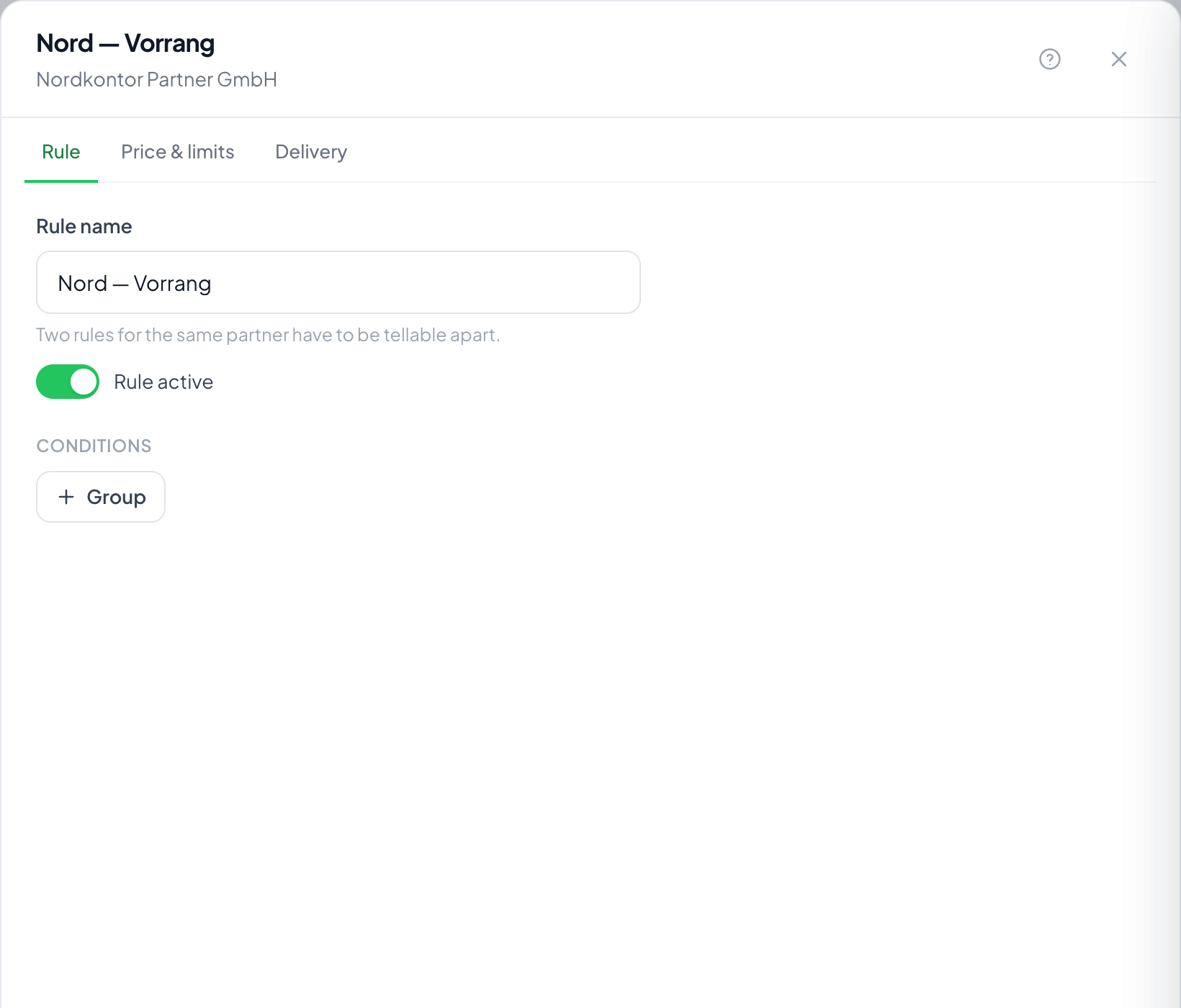
Conditions use the same toolkit
They are built like a Filters in the record list, from fields and details of the record. A rule without conditions catches everything that got that far, which is why it is the usual last row as a catch-all.
The rule's price overrides the distribution's
By default the price from the settings applies. If a rule sets its own, it overrides the whole pricing rule and not only the number: ten euros per unit can become a flat two hundred and fifty, where the contract says so.
Caps slow the partner, not the rule
Day, week, month and total. Once one is reached, distribution skips that partner and moves to the next row. They are not out, they have had enough for today.
Step by step
- In the rule list, click the row you want to change.
- Set the conditions. Without a condition the rule takes everything that got as far as it.
- Set an own price if the contract differs from the one on the routing.
- Enter the limits this partner must not exceed in this routing.
- Pick the delivery and send a test delivery before the first real record goes out.
A rule without conditions: does it take everything?
Yes. An empty condition matches every record. That is the usual start: first everything goes to one partner, then you narrow it down.
Which fields can I use in conditions?
Every field of the record type, plus system details such as origin, assignee or creation date. The available comparisons follow the field type: a date field offers "before" and "after", a choice field offers "is one of".
What happens when a limit is reached?
The rule is skipped and the search continues: the distribution does not end. There are four limits (day, week, month, total), and the tightest one set always applies. 0 means no limit. Records that are currently on their way count too, so that under load ten records don't slip through the same check at once.
An own price for this rule. What does it override?
The distribution's whole pricing rule, not just the number. You can set a fixed amount, take the price from a number field on the record, or apply a rate to a field value. Without an own price, the distribution's price applies.
Where does the record go at the partner?
To a webhook address, by email, or both. The test delivery next to it sends a made-up record to the same address and shows request and response in plain text: the way to put a new connection into service without burning a real record.
Does the partner see every field?
Only the ones released for partners in the record type. What is not released is never sent: not in the webhook, not in the email, not in the portal. Fields marked as sensitive always stay out.
Rule off or participation off. What is the difference?
A rule that is switched off is skipped; the partner's other rules still apply. A participation that is switched off takes the partner out of this distribution entirely: that is the switch for "on holiday".