What actually went out
2 min read · By Stefan Köhn
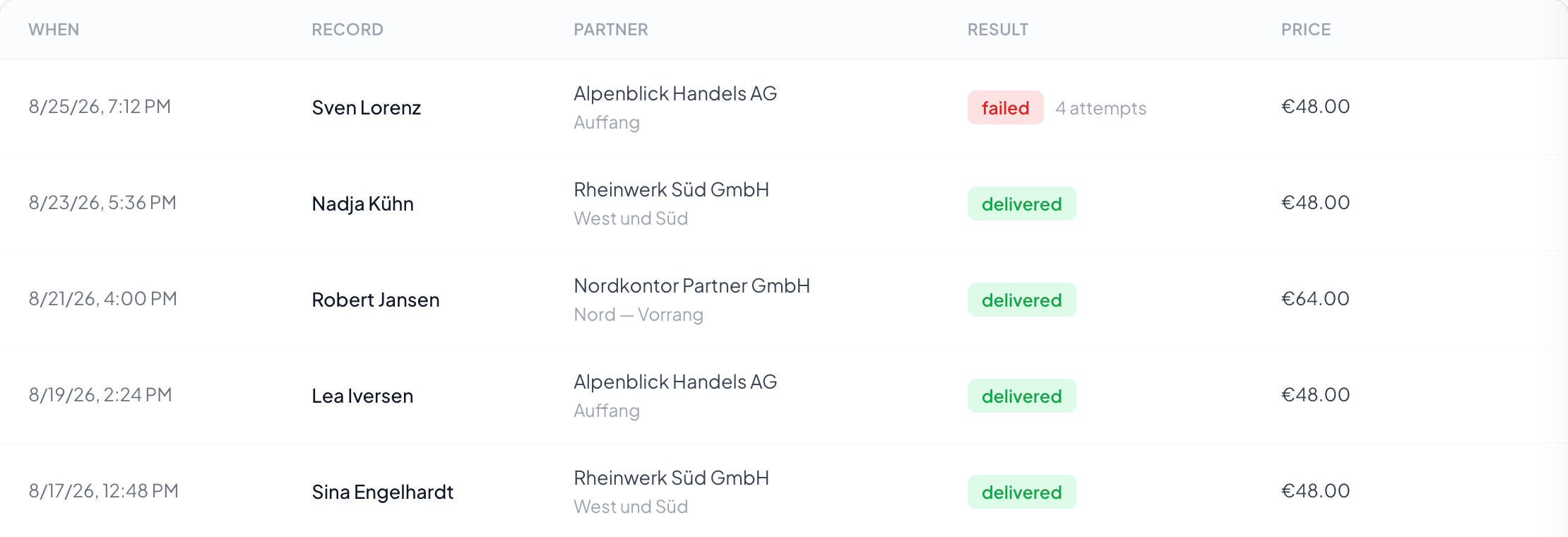
One row per partner and record: when, to whom, with what result and at what price. This list is the evidence, and at the same time the place where you see whether a connection works.
One row per partner and record
When, to whom, with what outcome and at what price. A record going to three partners makes three rows. This list is the evidence, and at the same time the place where you see whether a connection works.
The outcomes
Delivered, failed, returned. A failed attempt shows the number of tries next to it, and the single view shows the reason the recipient gave.
The success rate at the top right
The share of delivered rows among all rows shown. It follows the filter: as soon as you filter by outcome it disappears, because a rate over a set already filtered by outcome would always be nought or a hundred.
Step by step
- Open Routing. The Deliveries tab is at the front.
- Narrow down to the partner or the period in question.
- Go through the result column. Whatever is not green has its reason beside it.
- Click a row when you want to see the whole path of that delivery.
What do the results mean?
"Reserved" means assigned but not yet sent. "Running" is on its way. "Delivered" arrived. "Failed" means every attempt is used up. "Held" is waiting for a time window. "Cancelled" was returned.
Why do some rows show a number next to the result?
That is the number of attempts. A delivery is retried three times: after 5, 15 and 60 minutes. Only then does it count as failed.
When may I press "send again"?
For failed and for held deliveries. The record goes out again with the same idempotency key, so a partner who did receive it the first time will not create it twice.
What does the success rate at the top right say?
The share of delivered rows among all rows shown. As soon as you filter by result it disappears: filtering for "delivered" would otherwise always give a hundred percent.
A delivery shows €0.00: is that a mistake?
Not necessarily. If no price is set for the rule, nothing is charged. That is a legitimate case: for instance when a partner is paid on closing instead of per record.
Where do I see what the partner answered?
In the row's audit trail. Every attempt is listed with time, status code and the recipient's answer: truncated to the first characters, so the delivered data does not end up in our database a second time.