Multi-Page Forms
Where to find it
Sidebar > Forms > [Entity] > [Form] > Edit > + button between pages
Multi-Page Forms
Long forms can feel overwhelming. Multi-page forms split your form into pages, showing a few fields at a time. Users progress through pages with Next and Previous buttons, and a progress bar shows how far along they are. This reduces cognitive load and often improves completion rates.
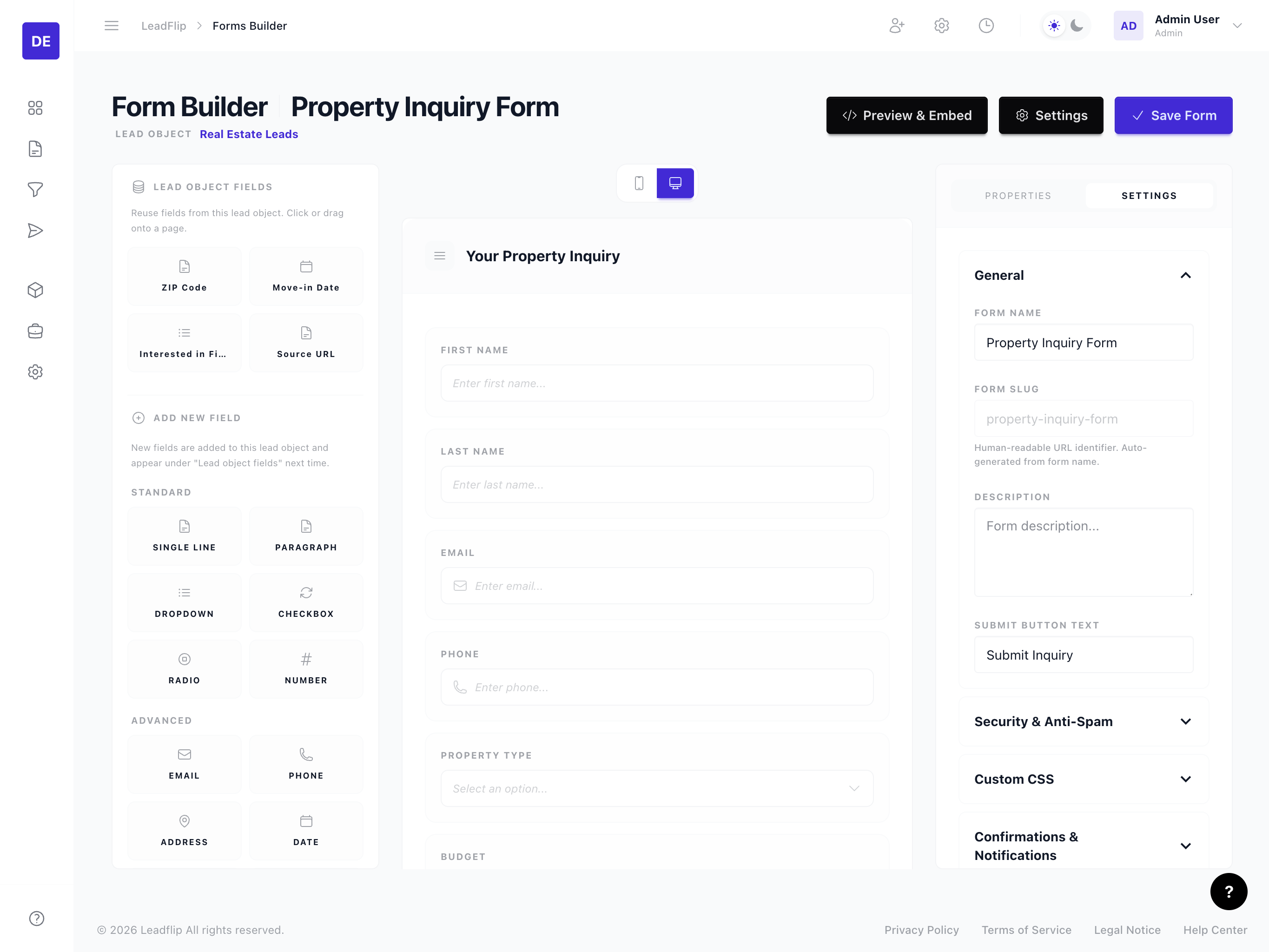
Adding a New Page
Every form starts with one page. To add more pages:
- Open the Form Builder for your form.
- Between pages (or after the last page), you'll see a round + button.
- Click the + button to insert a new page after the current one.
- The new page appears empty -- drag fields onto it from the field panel on the left.
You can add as many pages as you need. Each page is a separate section of the form that the user completes before moving on.
Page Settings
Click on a page header to open its settings panel on the right. Each page has the following options:
General
- Page Title -- A heading shown at the top of the page (e.g., "Contact Information", "Property Details"). Visible to the user when the form has multiple pages.
- Description -- Optional text displayed below the page title to guide the user. The description respects the page's alignment setting.
Navigation Buttons
Each page can have customized navigation buttons:
- Previous Button Text -- Customize the label (e.g., "Back", "Go Back"). Leave empty to hide the previous button. The first page has no previous button.
- Next Button Text -- Customize the label (e.g., "Continue", "Next Step"). Leave empty to use the default "Next". The last page uses the Submit button, which is configured in Form Settings.
Appearance
- Alignment -- Override the form-level alignment for this specific page. Options:
- Inherit from form (default) -- Uses the alignment set in Form Settings.
- Left -- Page title, description, and fields align left.
- Center -- Page title, description, image choice grids, and half/third-width fields center horizontally.
- CSS Classes -- Add custom CSS classes to the page wrapper for advanced styling.

Conditions
Conditions let you conditionally show or hide an entire page based on field values. This is useful when certain pages only apply to some users.
- Click Add condition to define a rule.
- Each rule has a Field, an Operator (e.g., equals, contains, is not empty), and a Value.
- If the conditions are not met, the page is skipped entirely -- the user jumps from the previous page to the next visible page.
Example: You have a page for "Property Details" that should only show if the user selected "Real Estate" on Page 1. Add a condition: Property Type → equals → Real Estate.
How Multi-Page Forms Work for Users
When a user fills out a multi-page form:
- Progress bar -- A visual indicator at the top shows which step they're on and how many steps remain.
- Next button -- Clicking Next advances to the next page.
- Previous button -- Clicking Previous returns to the previous page so the user can edit their answers. The previous button is only visible when the Previous Button Text field in page settings has a value.
- Submit button -- On the last page, the Next button is replaced by a Submit button.
- Skipped pages -- Pages with conditions that don't match are skipped automatically. The progress bar adjusts accordingly.
Button Layout
The navigation button layout adapts to the form's alignment:
- Left-aligned forms -- The Previous button appears on the left side and the Next/Submit button on the right side (space-between layout).
- Center-aligned forms -- Both buttons are grouped together in the center of the page.
Organizing Your Pages
A typical multi-page form structure:
| Page | Content |
|---|---|
| Page 1 | Contact info (name, email, phone) |
| Page 2 | Primary details (lead type, budget, timeline) |
| Page 3 | Additional questions (conditional fields, notes) |
Keep each page focused. Avoid putting too many fields on one page -- 3 to 7 fields per page is a good guideline.
Best Practices
- Logical grouping -- Group related fields on the same page (e.g., all contact info together).
- Progressive commitment -- Put the easiest or most important fields first to build momentum.
- Use page titles -- Clear titles like "Contact Information" or "Property Details" help users understand what each step is about.
- Use conditions for relevance -- Use conditions to skip pages that don't apply, so users only see what's relevant to them.
- Mobile-friendly -- Multi-page forms work well on mobile because shorter pages reduce scrolling.
Next Steps
- Add conditional logic to fields
- Configure form settings (submit button text, redirect after submission)
- Embed or share your form