Conditional Logic
Where to find it
Sidebar > Forms > [Form] > Edit > Click field > Conditions
Conditional Logic
Conditional logic lets you show or hide form fields based on the values of other fields. Use it to create dynamic forms that adapt to user input. For example, show a "Property Type" field only when the user selects "Real Estate" from a dropdown, or display additional questions when they choose "Other."
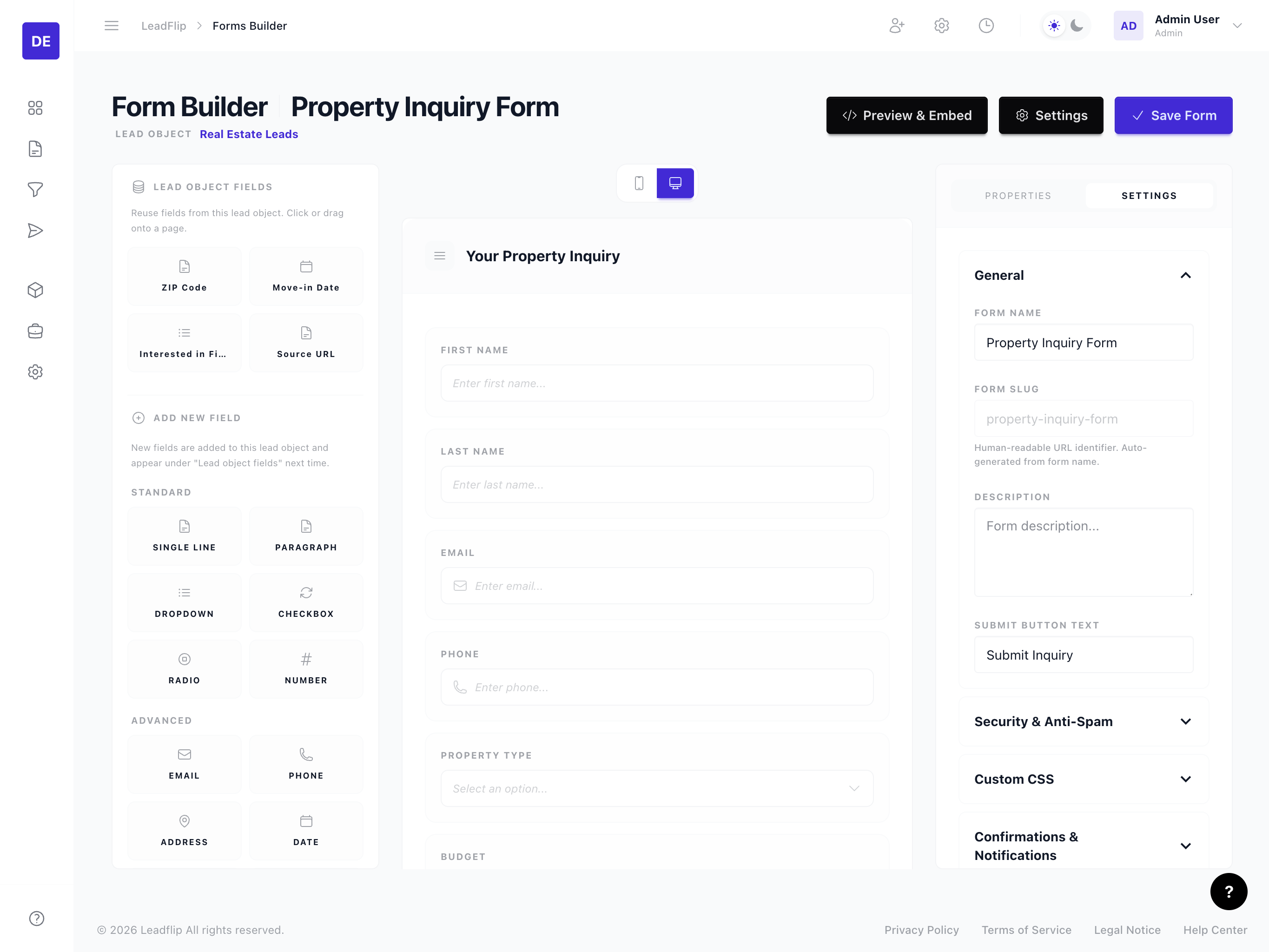
How It Works
Each field can have conditions that control its visibility:
- Show when – The field is visible only when the condition is met.
- Hide when – The field is hidden when the condition is met (visible otherwise).
Conditions compare a source field (another field on the form) to a value using an operator (equals, not equals, contains, etc.). When the condition evaluates to true, the visibility rule applies.
Adding a Condition
- Click the field you want to make conditional.
- Open the Conditions accordion in the field properties panel.
- Click Add condition.
- Select the source field (the field whose value you're checking).
- Choose the operator (e.g., "equals", "not equals", "contains", "is empty").
- Enter or select the value to compare against (if applicable).
- Add more conditions and choose And or Or to combine them.
Operators
| Operator | Description | Example |
|---|---|---|
| Equals | Exact match | Show when lead_type equals "Buyer" |
| Not equals | Does not match | Hide when status equals "Inactive" |
| Contains | Text contains substring | Show when notes contains "urgent" |
| Does not contain | Text does not contain | Hide when source contains "test" |
| Is empty | Field has no value | Show when company is empty |
| Is not empty | Field has a value | Hide when phone is not empty |
| Greater than | Numeric comparison | Show when budget > 100000 |
| Less than | Numeric comparison | Show when quantity < 10 |
Available operators may vary by field type. Select fields use "equals" and "not equals" with option values; text fields support "contains" and "is empty."
Multiple Conditions
Combine conditions with And or Or:
- And – All conditions must be true (e.g., Show when
typeequals "Buyer" andbudget> 50000). - Or – At least one condition must be true (e.g., Show when
stateequals "CA" orstateequals "NY").
Use Add condition to build complex rules. You can often simplify by breaking logic across multiple fields or using nested conditions if your builder supports them.
Common Use Cases
Progressive Disclosure
Show follow-up questions only when relevant:
- User selects "Homeowner" → Show "Property address" and "Year built"
- User selects "Renter" → Show "Landlord name" and "Lease end date"
Branching by Category
- User selects "Insurance" → Show coverage type, deductible, and policy details
- User selects "Real Estate" → Show property type, budget, and timeline
Optional Sections
- User checks "I have a co-borrower" → Show co-borrower name, income, and contact fields
- User leaves it unchecked → Keep the form short
Order of Fields
Conditions reference other fields on the form. Ensure the source field appears before the conditional field so the user has already answered it when the condition is evaluated. If the source field is on a later page, the condition is evaluated when that page is reached.
Best Practices
- Keep conditions simple – Complex logic can confuse users and be hard to maintain.
- Test thoroughly – Try all branches (each option, each path) to ensure fields show and hide correctly.
- Avoid circular logic – Don't create conditions where Field A depends on Field B and Field B depends on Field A.