Calculations & Formulas
Where to find it
Sidebar > Forms > [Form] > Edit > Click field > Form > Enable Calculation
Calculations & Formulas
Formula fields let you compute values based on other form fields. Use them for pricing calculators, area calculations, totals, or any math that depends on user input. Formula fields are read-only; users see the result but cannot edit it.
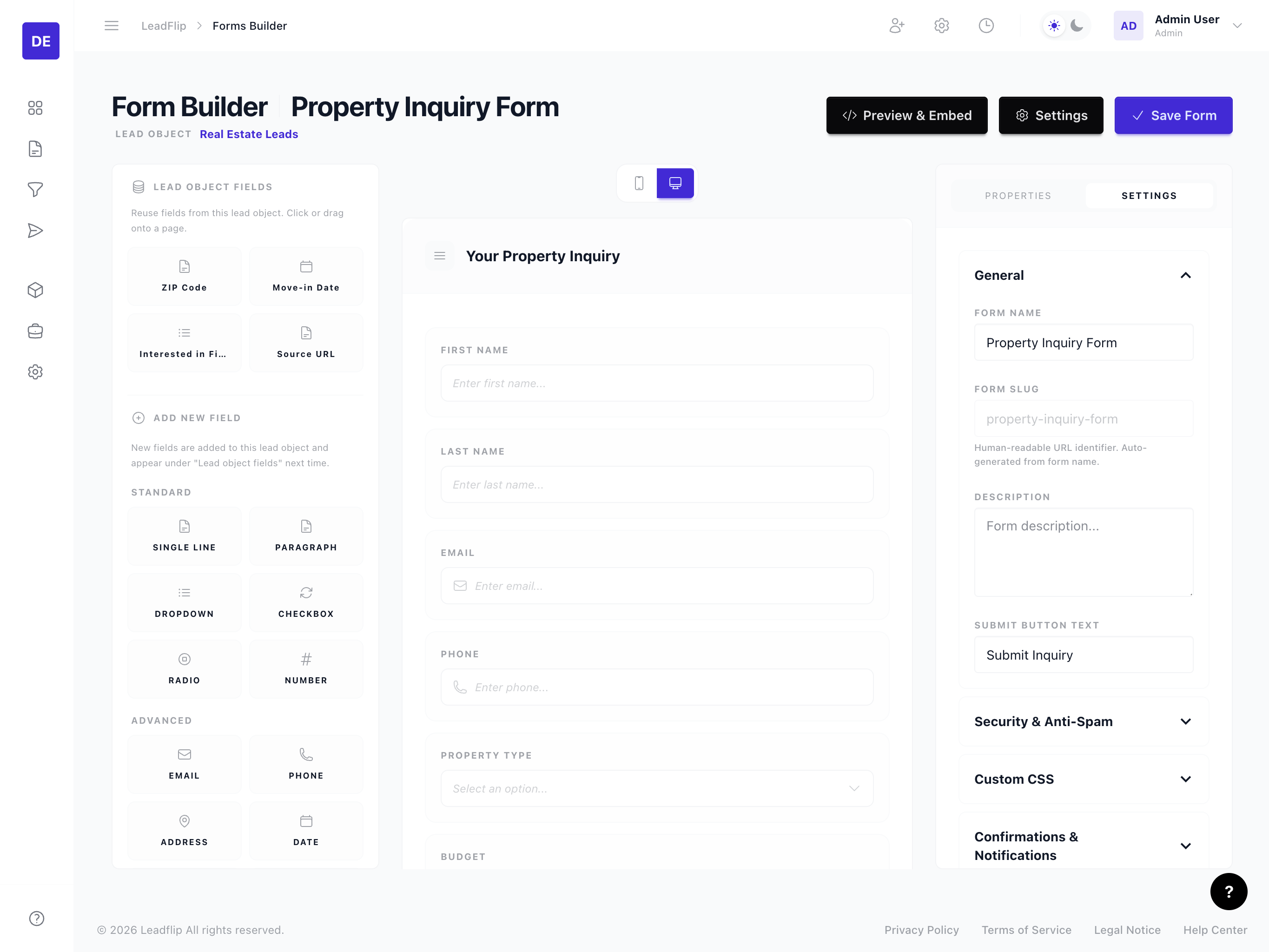
Adding a Formula Field
- Ensure your Entity has a number, currency, or percentage field type defined for the calculation result.
- Add the field to your form from the field panel (same as any other field).
- Click the field to open its properties.
- In the Form accordion, toggle Enable Calculation to on.
- A formula editor appears where you can enter your expression.
Referencing Other Fields
Reference other form fields using the variable editor. Click the code button in the formula editor to open a dropdown of available numeric fields. Select a field to insert its reference (e.g., {{ price }}). This is the same variable editor used for default values -- it ensures you always reference valid fields.
Example: If you have fields price and quantity, a formula might be:
{{ price }} * {{ quantity }}
Field keys are lowercase, use underscores for spaces (e.g., square_feet, zip_code). You can find the key in the Entity field definition or in the field properties panel.
Operators
Formulas support common operators:
| Operator | Description | Example |
|---|---|---|
+ |
Addition | {{ a }} + {{ b }} |
- |
Subtraction | {{ total }} - {{ discount }} |
* |
Multiplication | {{ price }} * {{ quantity }} |
/ |
Division | {{ total }} / {{ count }} |
() |
Grouping | ({{ a }} + {{ b }}) * {{ tax }} |
You can combine operators and use parentheses to control order of operations. Ensure referenced fields contain numeric values; text or empty values may produce unexpected results.
Common Use Cases
Price Calculator
{{ base_price }} * {{ quantity }}
Area or Volume
{{ length }} * {{ width }}
Or for volume:
{{ length }} * {{ width }} * {{ height }}
Percentage or Tax
{{ subtotal }} * (1 + {{ tax_rate }} / 100)
Conditional Calculations
Some formula engines support IF-style logic. Check your Entity's formula syntax for conditionals (e.g., IF({{ condition }}, value_if_true, value_if_false)).
Display Formatting
Use field properties to format the formula result:
- Prefix – Add text before the value (e.g., "$" for currency).
- Suffix – Add text after (e.g., " sq ft", " units").
- Decimals – Control decimal places for numeric output.
Best Practices
- Reference existing fields – Formula fields compute from other fields on the form. Ensure those fields are added and appear before (or in a logical order with) the formula field.
- Handle empty values – If a referenced field is empty, the formula may return blank or an error. Consider default values in the Entity.
- Keep it simple – Complex formulas can be hard to debug. Break very long calculations into multiple formula fields if needed.