Date reached
2 min read · By Stefan Köhn
Checks once a day which records have passed the set threshold on a date field: optionally with an offset before or after. A deadline is thereby nothing more than a date in a field.
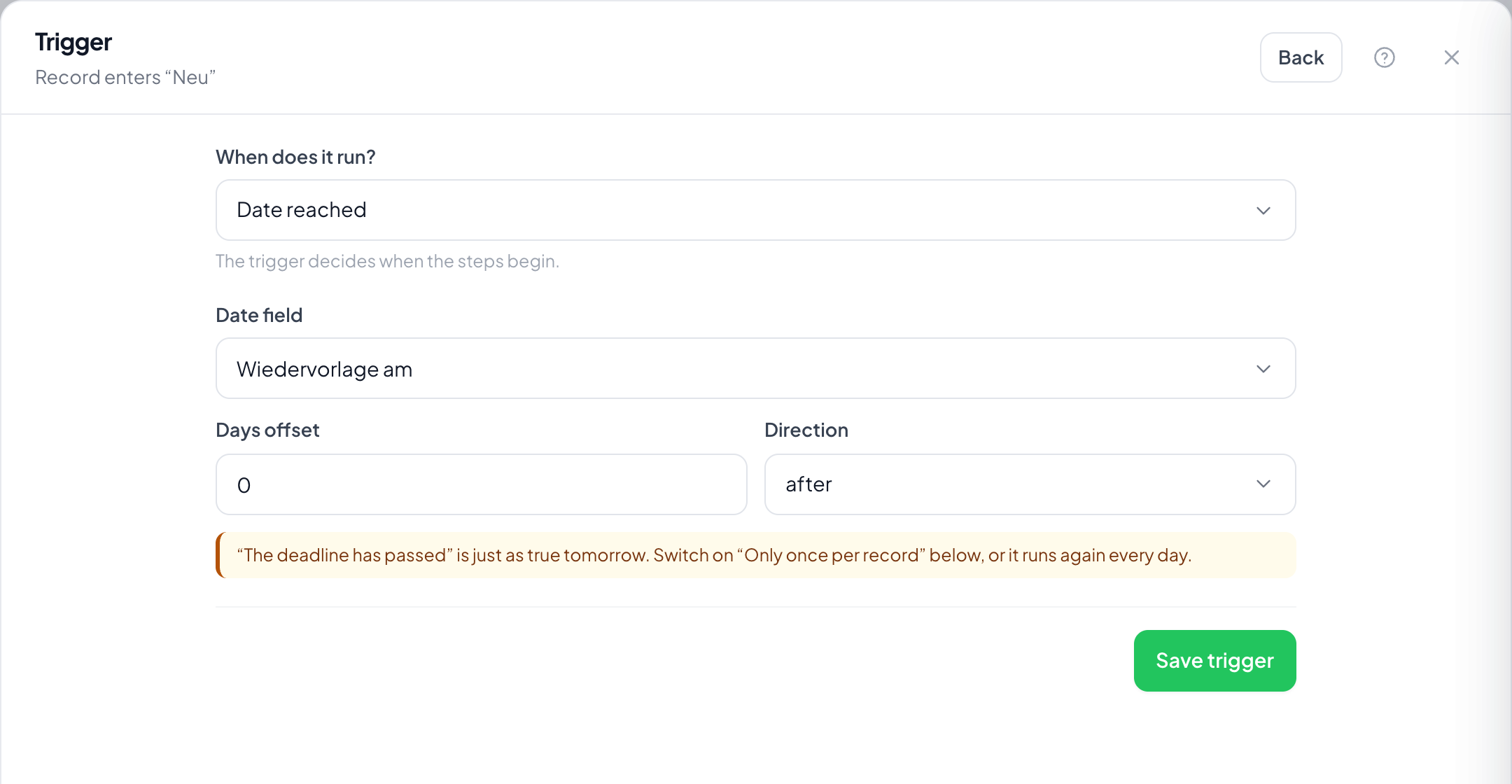
Step by step
- On the Records page open Automations through the menu at the top right, choose Create automation and take Date reached as the trigger.
- Under Date field pick the field the deadline hangs on.
- Set Offset in days and Direction: two days before, for instance.
- Switch on Once per record, otherwise the automation runs again every day.
- Save the trigger, set the steps, switch it on. The first pass happens with the next daily run.
Why should I switch on Once per record?
Because the deadline has passed is just as true tomorrow. Without the switch the same reminder goes out every day.
When exactly does the daily check run?
Once a day in the background. An automation meant to fire at a particular hour cannot be built this way: the trigger knows days, not hours.
What about records whose date is long past?
They are caught on the first run after switching on. To avoid that, narrow it down to a period with a filter.
What if the date field is empty?
The record is not caught. There is no threshold for it to pass.
The entity has no date field: now what?
Then the trigger cannot be set up; the field is missing from the list. Create a date field under Entities and fields.
What happens if the date changes later?
The check always takes the current value. But if the automation has already run on that record and Once per record is set, it does not run again.