Creating a Form
Last updated: 2026-05-13
Sidebar > Forms > [Entity] > Create Form
Where to find it
Sidebar > Forms > [Entity] > Create Form
Creating a Form
Creating a new form in Leadflip is straightforward. This guide walks you through the process from selecting an Entity to opening the Form Builder.
Prerequisites
Before creating a form, you need at least one Entity with fields defined. If you haven't set up an Entity yet, go to Entities in the sidebar and create one first. Forms pull their fields from the Entity, so your data model must exist before you build the form.
Step 1: Open the Forms Section
- Click Forms in the sidebar.
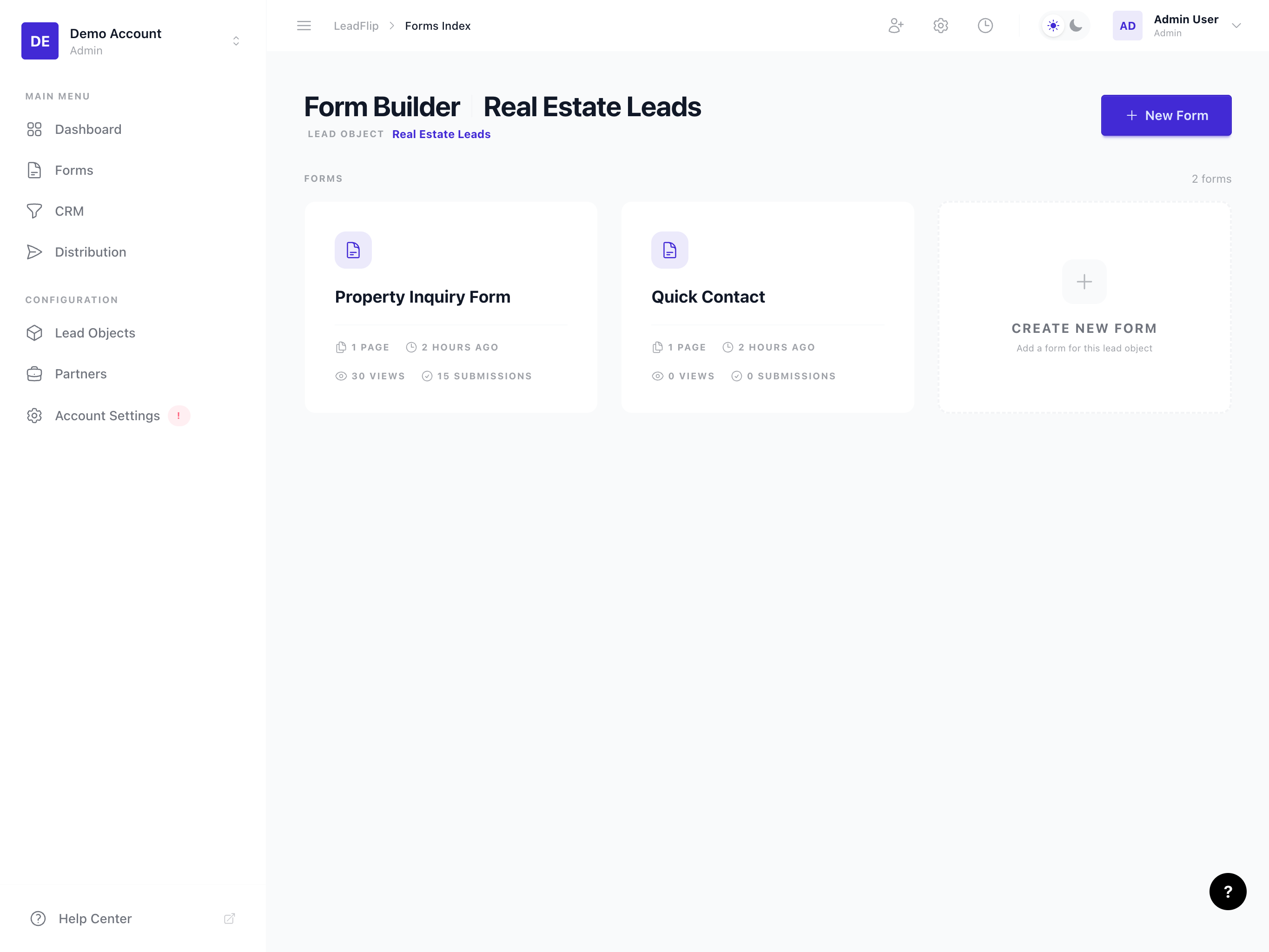
- You'll see your forms grouped by Entity. If you have multiple Entities, expand the one you want to use.
Step 2: Select an Entity
- Locate the Entity your form will use (e.g., "Real Estate Leads", "Insurance Leads").
- Click the Create Form button next to that Entity, or use the + New Form action if available.
The Entity you choose determines which fields are available in the form. All custom fields defined on that Entity will appear in the field panel when you build the form.
Step 3: Name Your Form
- Enter a form name in the dialog. Use something descriptive (e.g., "Homepage Contact Form", "Quote Request - Insurance").
- Optionally add an internal description to help your team identify the form later.
- Click Create to open the Form Builder.
Step 4: Start Building
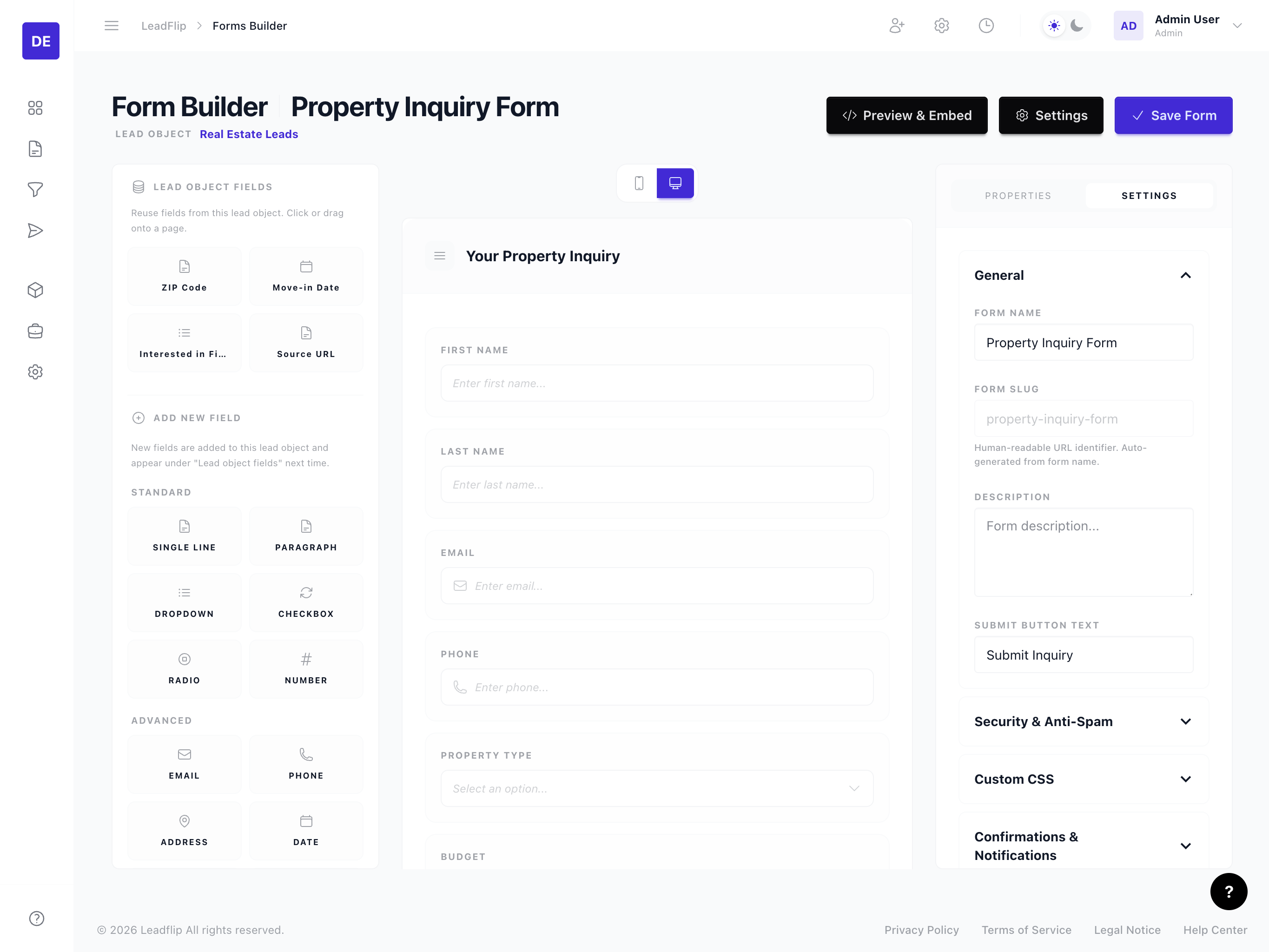
Once created, the Form Builder opens with:
- An empty canvas – Your form layout area
- A field panel – All fields from your selected Entity
- Settings – Access form settings, embed code, and preview from the toolbar
You're ready to add fields to your form and configure them.
Tips for New Forms
- Start simple – Add the most important fields first (name, email, phone), then expand.
- Match your Entity – Ensure your Entity has all the fields you need before building. You can add fields to the Entity later and they'll appear in the form.
- Use a clear name – Form names help when you have multiple forms or embed several on one site.