Who gets the campaign
2 min read · By Stefan Köhn
You put the audience together with the same conditions you use in the record list. From it comes the recipient list, after three deductions the application sets out openly.
The same filter, not a second one
There is no separate campaign dialogue that would pick the same set differently. What you see in the record list is what the campaign gets. A second filter toolkit would be a second reading, and that only surfaces once the mail is out.
Three deductions, set out openly
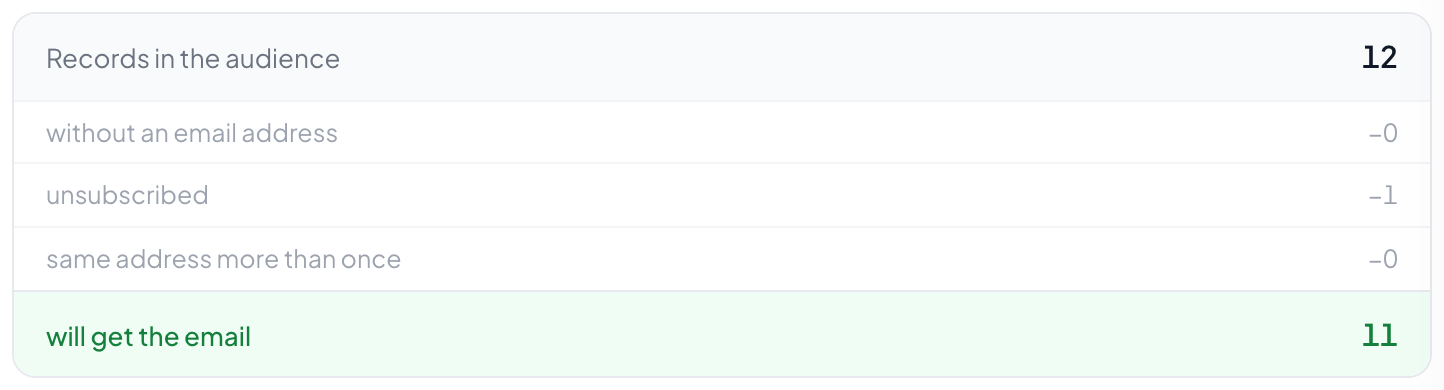
Before sending there is a funnel: how many records are in the audience, how many have no email address, how many have unsubscribed, how often the same address appears more than once, and how many end up getting the mail. No judgement, just arithmetic.
Two records, one person, one message
If the same address appears several times, the mail goes out once. Someone who made two enquiries is still one person, and two identical campaigns in a row are the reason for the next unsubscribe.
No consent, no recipient
Bulk email only goes to people with marketing consent recorded. Which field that is you state once through the field role. Mail an automation sends on a record does not check that field; there you put a filter in the flow if you need one.
Step by step
- In the campaign, open the section for who gets it.
- Set the conditions, exactly as in the record list.
- Read the funnel: audience, deductions, recipients.
- If a number surprises you, check the conditions before going on.
The recipient count is far smaller than the audience.
Then one of the three deductions applies. The funnel says which: missing address, unsubscribe or duplicate address.
When is the recipient list fixed?
At scheduling. A record growing into the audience afterwards does not get this campaign.
Can I filter by stage?
Yes, when the CRM is booked. Without that module there is no stage and the condition drops away; you still filter by fields.
How do I exclude single recipients?
With an extra condition. Anyone who should permanently get nothing belongs on the unsubscribe list.
Does an archived record count?
Only if your conditions include it. The filter is the same as in the list, and there the archive is hidden by default.