Sender, timing and what happens on send
2 min read · By Stefan Köhn
Before sending you decide who the mail comes from and when it goes out. After that the application works through the recipient list in batches.
The sender is the account
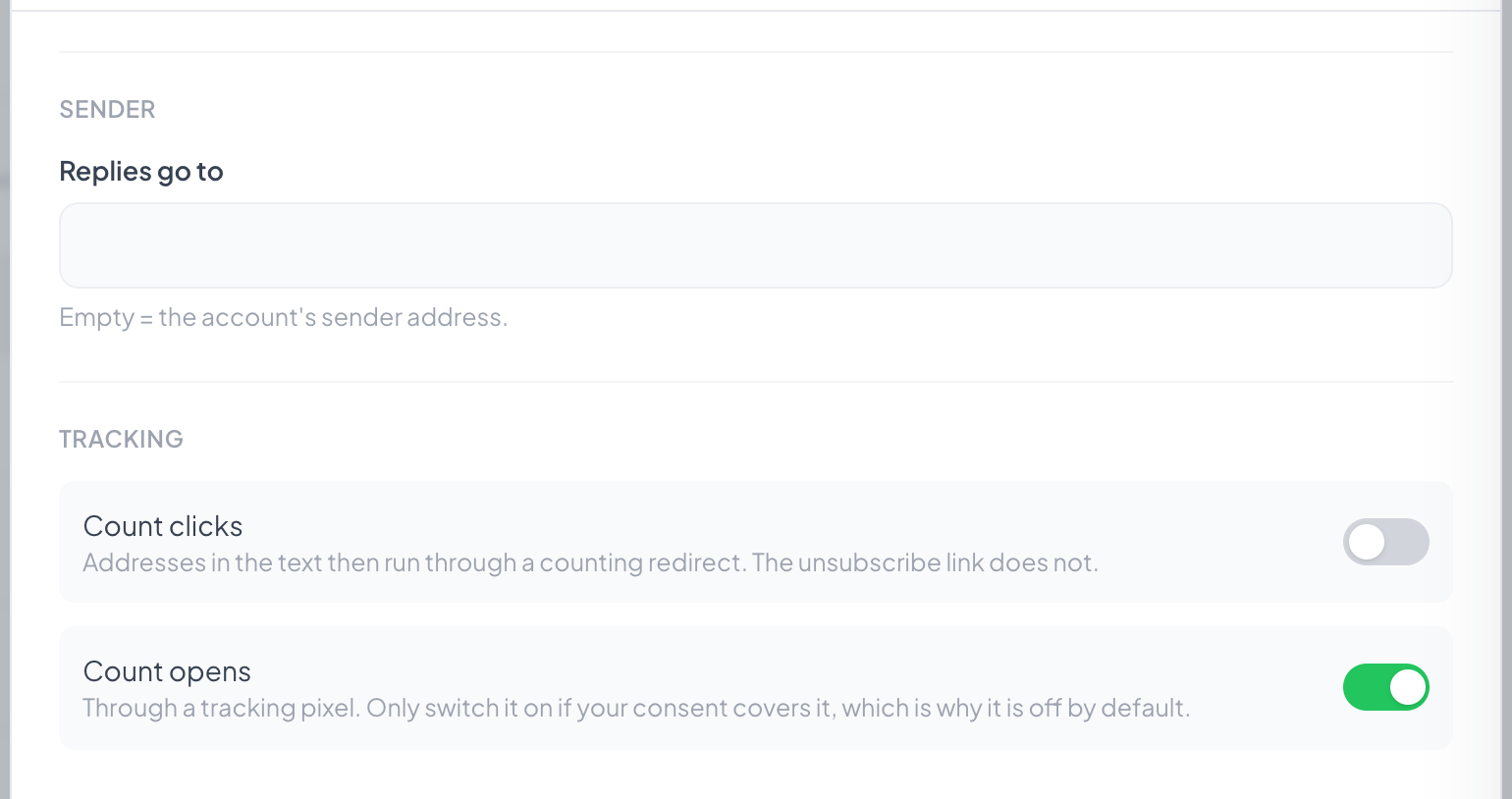
Bulk email goes through the account's outgoing mail, not through a person's own setup. That is the difference from mail on a single record: a newsletter comes from the firm, not from one colleague. A different reply address can be set; empty means replies go to the sender address.
A time, or straight away
An empty field means: on the next run, within five minutes at the latest. With a time, the campaign waits. Until then it sits on Scheduled and can still be stopped.
In batches, around a thousand an hour
A campaign to a thousand recipients does not fit into a single request. The recipient list is therefore fixed, and every five minutes a run takes the next batch. Sending faster gets noticed by the recipients' providers; sending slower waits for nothing.
Stopping takes effect between batches
Every run checks the state afresh rather than trusting the one it started with. A stop therefore applies from the next batch. Whatever is in flight at that moment arrives.
Step by step
- In the sender section, set the reply address if it should differ.
- Choose Check and send.
- Enter a time or leave it empty.
- Confirm. The number on the button names the recipients.
How long does a send to a thousand recipients take?
About an hour. That is not a weakness but deliberate: a surge all at once gets noticed by the recipients' providers and hurts deliverability.
Can I stop a send in progress?
Yes, with Stop. It halts before the next batch; what has gone out stays out.
Why does the mail come from a different address than my usual post?
Because bulk email goes through the account's setup. A person's own setup applies to mail on a single record, see Outgoing mail.
What goes into the change log?
Every send, with time and recipient count. See Change log.
The send failed. Now what?
The report says how many are affected. Often it is the outgoing mail; check the connection under Outgoing mail and create a new campaign for the remainder.